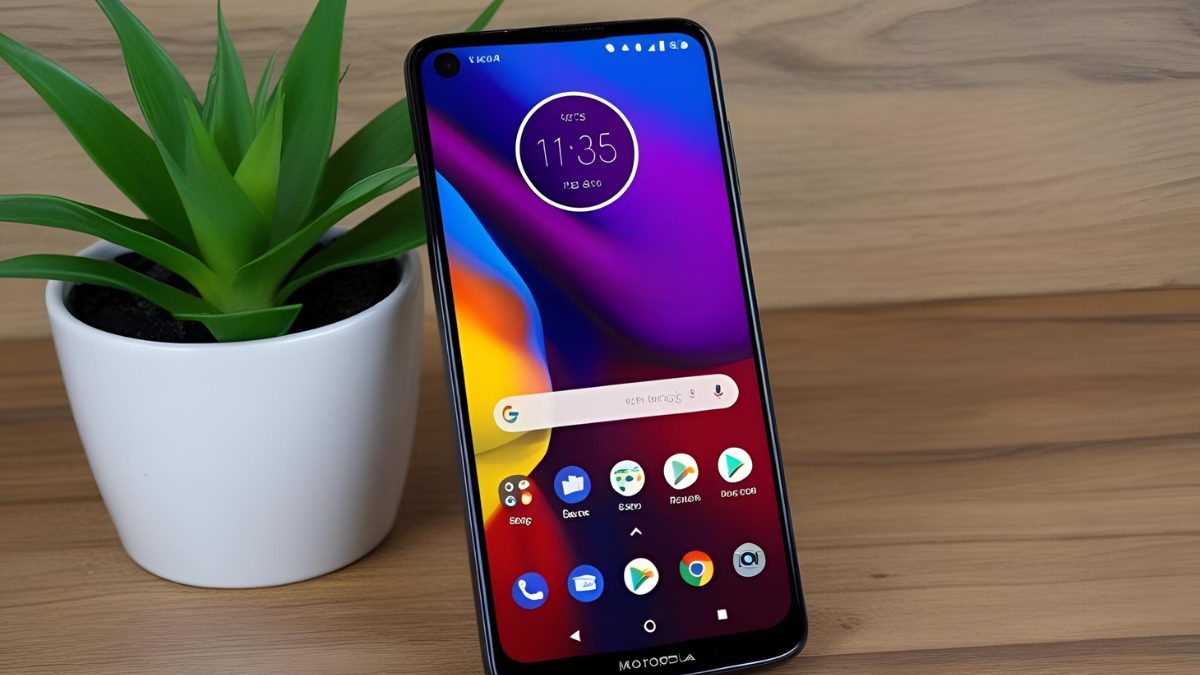
Motorola Edge 50 Pro Flash File Download (XT2403-2): The Motorola Edge 50 Pro XT2403-2 is a high-end smartphone known for its advanced features and excellent performance. However, there are instances where users may need to flash the device to resolve software issues, unbrick the phone, or upgrade/downgrade the firmware. This comprehensive guide will walk you through downloading and installing the official flash file for the Motorola Edge 50 Pro XT2403-2.
Table of Contents
What is a Flash File?
A flash file, also known as firmware or stock ROM, is the software that controls your device’s hardware. Flashing the stock ROM can restore the device to its original state, fix software bugs, or update the system.
Why Flash the Motorola Edge 50 Pro XT2403-2?
Here are some common reasons to flash the firmware on your device:
- Fix Software Issues: Resolve problems like boot loops, app crashes, or system errors.
- Remove Malware/Viruses: Flashing eliminates malicious software that may be affecting performance.
- Unbrick the Device: If your phone is stuck on the boot logo or is not turning on, flashing can restore it.
- Upgrade/Downgrade Firmware: Install a different version of Android if needed.
- Reset FRP Lock: Bypass the Factory Reset Protection (FRP) lock.
Pre-Requisites Before Motorola Edge 50 Pro Flash File Downloading and Flash
Before proceeding, ensure you have the following:
- A Windows PC or Laptop
- A USB cable
- Motorola USB Drivers (Download and install on your PC)
- Motorola Edge 50 Pro XT2403-2 Flash File (Download the official firmware)
- SP Flash Tool or Fastboot Firmware Flashing Tool
- Backup of all important data (Flashing will erase everything on the device)
How to Download the Motorola Edge 50 Pro XT2403-2 Flash File
To get the Motorola Edge 50 Pro XT2403-2 Flash file, visit trusted firmware and mobile servicing website such as below:
| Name | Motorola Edge 50 Pro Flash File XT2403-2 |
| Size | 4.4 GB |
| Password | Paid 20 USDT, 1400 RS. |
| Contact whatsapp number | Officialroms , unlockerworld |
Ensure you download the exact model-specific firmware (XT2403-2) to avoid compatibility issues.
Read also: Motorola Edge 50 Pro FRP File Download (XT2403-2)
How to Flash the Motorola Edge 50 Pro XT2403-2
Step 1: Prepare Your PC
- Install Motorola USB drivers on your computer to ensure proper device communication.
- Extract the FRP removal package, which includes essential files such as
flash.bat,frp.img, and Fastboot tools.
Step 2: Boot into Fastboot Mode
- Turn off your Motorola Edge 50 Pro completely.
- Press and hold the Volume Down + Power buttons together until the Fastboot mode screen appears.
- Use a USB cable to connect your phone to the PC.
Step 3: Run the Flash Script
- Open the extracted folder on your computer.
- Double-click on
flash.batto initiate the flashing process. - A command prompt window will open and automatically handle the FRP removal.
- Wait for the process to complete—your phone may reboot during the procedure.
Step 4: Final Setup
- Once the device restarts, it should no longer ask for the previously linked Google account.
- Follow the on-screen instructions to set up your phone and sign in with a new Google account.
Now, your Motorola Edge 50 Fusion 5G should be ready to use!
Read also: How to Use Motorola Moto G85 5G FRP File to Unlock Your Device
FAQ About Motorola Edge 50 Pro Flash File Download (XT2403-2)
Is flashing safe for my device?
Flashing is safe if done correctly with the right firmware and tools. However, incorrect procedures can brick the device.
Will flashing erase my data?
Yes, flashing will erase all data, so it’s crucial to back up your files before proceeding.
How long does the flashing process take?
Flashing usually takes 5-10 minutes, depending on the method and firmware size.
Can I downgrade my firmware version?
Yes, but ensure the bootloader is unlocked and that the older firmware is compatible.
What should I do if my device gets stuck in a boot loop?
Try performing a factory reset by booting into recovery mode. If the issue persists, reflash the firmware.
Where can I get official Motorola firmware?
You can download it from Motorola’s official website or trusted third-party sources like MotoStockROM.
What if my PC does not recognize the phone?
Ensure Motorola USB drivers are installed and try using a different USB cable or port.
Final Thoughts
Flashing your Motorola Edge 50 Pro XT2403-2 can be an effective way to resolve software issues, unbrick the device, or update the firmware. However, following the steps carefully is essential to avoid complications. If you’re unsure, seek professional assistance to ensure a smooth flashing process.
Read also: Unlock Motorola MOTO G34 5G FRP File & Flash File Guide 2025