Motorola Edge 50 Fusion 5G Flash File 2025: The Motorola Edge 50 Fusion 5G is a high-performance smartphone with advanced features. However, like any electronic device, it may encounter software issues that necessitate flashing the firmware. A flash file (or stock ROM) is crucial for resolving problems such as boot loops, system crashes, software glitches, and bypassing FRP locks. This guide provides a step-by-step process to download and install the flash file for the Motorola Edge 50 Fusion 5G.
Table of Contents
Why Flash Your Motorola Edge 50 Fusion 5G?
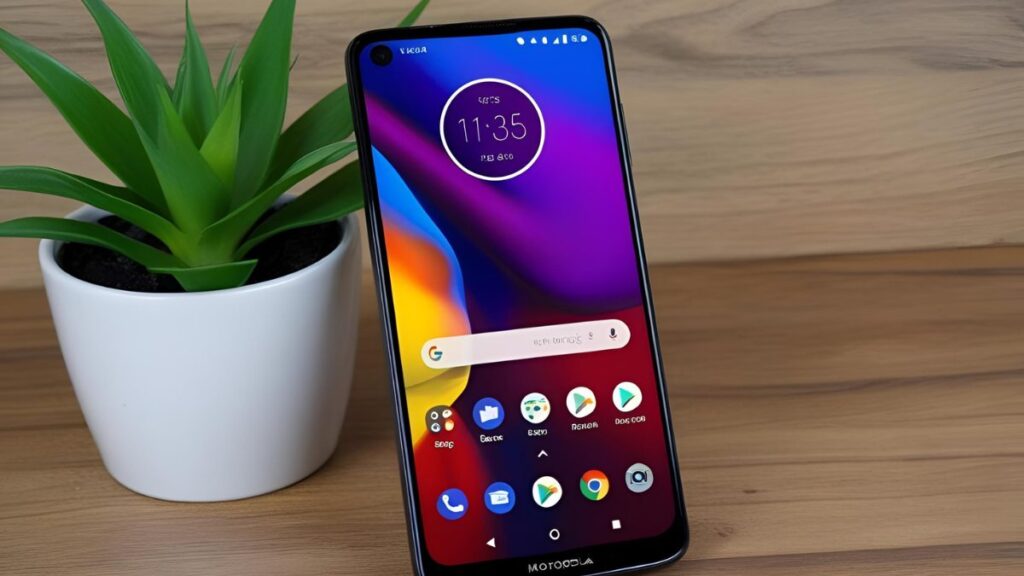
Flashing your device can be beneficial in the following situations:
- Fixing boot loops and devices stuck on the logo screen.
- Repairing corrupted system software.
- Restoring the phone to factory settings.
- Updating or downgrading the firmware.
- Resolving software bugs and performance issues.
- Removing malware or viruses.
Conditions before flashing
Before proceeding, ensure you have the following:
- A computer (Windows or Linux preferred).
- A USB cable (preferably the original Motorola cable).
- A fully charged device (at least 60% battery level).
- Flash File (Stock ROM) – Official Motorola firmware.
- Motorola USB Drivers – Required for proper device detection.
- Qualcomm Flash Tool or RSD Lite Tool – Required for flashing.
- A complete backup of important data, as flashing will erase everything.
Where to Download the Motorola Edge 50 Fusion 5G Flash File (XT2429-2)
You can obtain the official firmware for your device from the following trusted sources:
| Name | Motorola Edge 50 Fusion 5G XT2429-2 |
| Size | 4.4 GB |
| Password | Paid 20 USDT, 1400 RS. |
| Contact whatsapp number | Officialroms , unlockerworld |
How to Flash Motorola Edge 50 Fusion 5G XT2429-2
Follow these steps to safely flash the firmware on your device:
Step 1: Get Your Computer Ready
- Install Motorola USB drivers on your PC to ensure proper device recognition.
- Extract the FRP package, which includes essential files like
flash.bat,frp.img, and Fastboot tools.
Step 2: Enter Fastboot Mode on Your Phone
- Power off your device completely.
- Press and hold the Volume Down and Power buttons at the same time until the Fastboot mode screen appears.
- Connect your phone to the computer using a USB cable.
Step 3: Run the Flashing Script
- Open the folder where you extracted the FRP package.
- Double-click
flash.batto launch the flashing process. - A command prompt window will appear and execute the necessary steps automatically.
- Wait until the process completes—your device may reboot on its own.
Step 4: Complete Device Setup
- After the reboot, your Motorola Edge 50 Fusion should no longer be locked to the previously used Google account.
- Proceed with the initial setup and log in using a new Google account.
By following these steps, you can successfully flash the firmware on your device.
Read also: Unlock Motorola MOTO G34 5G FRP File & Flash File Guide 2025
FAQ About Motorola Edge 50 Fusion 5G Flash File Download
What is a Flash File?
A flash file, also known as firmware or stock ROM, is the official operating system of your smartphone. It helps restore your device to its factory state in case of software-related issues.
Is Flashing My Phone Safe?
Yes, flashing is safe if done correctly. Always download firmware from trusted sources, follow the instructions carefully, and ensure your device has sufficient battery power.
Will Flashing Erase My Data?
Yes, flashing will delete all data from your device. It is strongly recommended to back up important files before proceeding.
How Do I Find My Motorola Edge 50 Fusion 5G Model Number?
To check your model number, go to Settings > About Phone > Model Number.
Can I Flash My Device Without a Computer?
No, flashing requires a PC and a compatible flash tool to install the firmware on your Motorola device.
Where Can I Find the Latest Updates for My Device?
To check for official updates, navigate to Settings > System > Software Updates.
My Device Is Stuck in a Boot Loop After Flashing. What Should I Do?
Try performing a factory reset:
- Boot into Recovery Mode by pressing Volume Up + Power Button.
- Select Wipe Data/Factory Reset.
- Restart your device and check if the issue is resolved.
Conclusion
Flashing the Motorola Edge 50 Fusion 5G can resolve software-related issues and improve overall performance. Always ensure you download the correct firmware and follow each step carefully to avoid complications. If you encounter difficulties, seek assistance from a professional technician or visit an authorized Motorola service center.
Read also: Motorola Edge 50 Pro FRP File Download (XT2403-2)