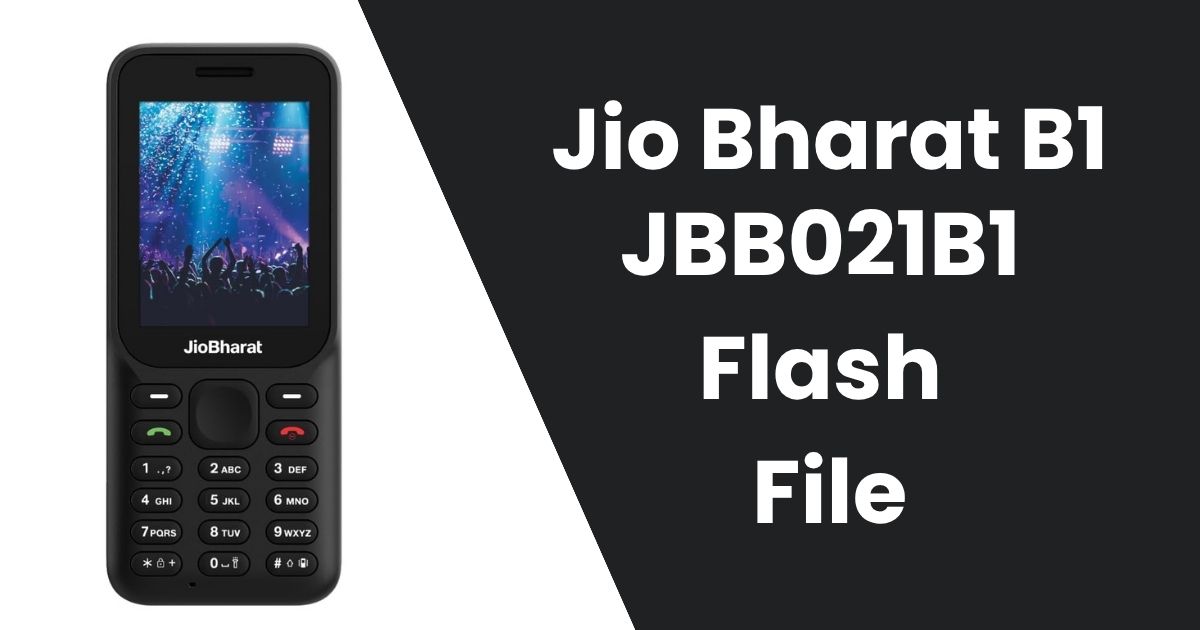
The Jio Bharat B1 , known by its model number JBB021B1, is an affordable 4G feature phone designed to deliver a reliable mobile experience with Jio’s services. Despite its many benefits, you may run into software issues, slowdowns, or even a bricked device that can be restored by flashing it with the official firmware. Flashing the firmware can help fix such problems, improve performance, or restore your device to its factory settings.
In this article, we will walk you through how to safely download and flash your Jio Bharat B1 using the JBB021B1 Flash file from officialroms.com, ensuring your device functions properly once again.
Table of Contents
What is a Flash File?
A flash file is a software package that contains the operating system and essential firmware for your device. For the Jio Bharat B1 (model JBB021B1), the flash file is the official firmware that can be used to restore or upgrade the device’s software. Flashing your phone involves replacing the old software with a fresh version, often to fix bugs, improve performance, or update the system.
When flashing your Jio Bharat B1 , you’ll use the official JBB021B1 Flash file, which is designed to ensure compatibility and avoid any damage to the phone’s functionality.
Why Would You Need to Flash Your Jio Bharat B1 ?
There are several reasons why you might need to flash your Jio Bharat B1 :
- Fixing Software Issues: If your phone is experiencing software bugs, system crashes, or performance slowdowns, flashing can often help resolve these issues by reinstalling the original firmware.
- Unbricking Your Device: If your phone is unresponsive or stuck in a boot loop (often called “bricked”), flashing the correct firmware can restore the phone to a working state.
- Restoring Factory Settings: Flashing can reset your device to its factory default settings, wiping out any data and ensuring a clean slate.
- Upgrading or Downgrading Firmware: If you’ve encountered issues with the latest software update, flashing allows you to either upgrade or revert to a previous, more stable version of the firmware.
- Customization and Advanced Uses: For advanced users, flashing can also be used to install custom ROMs, root the phone, or enable specific features not available by default.
How to Download the JBB021B1 Flash File
To flash your Jio Bharat B1 , you will need the official JBB021B1 Flash file. It’s important to download the firmware from a trusted source to avoid corrupt files or potential malware. officialroms.com is a reputable platform offering the correct and secure firmware for your device.
Here are the steps to download the JBB021B1 Flash file:
- Visit officialroms.com: Navigate to the official officialroms.com website, which provides official firmware files for various devices, including the Jio Bharat V2 4G.
- Search for Jio Bharat B1 (JBB021B1): You can either search for the JBB021B1 model directly or look through the Jio section of the site to find the firmware for your specific device.
- Download the Flash File: Once you find the correct file, download it to your computer. Ensure you’re downloading the official file and not a modified version.
- Extract the Files: After downloading the zip file, extract it using a program like WinRAR or 7-Zip. This will provide you with the flash file and all necessary components for the flashing process.
Download the JBB021B1 Flash File
To begin the process of flashing your Jio Bharat B1 (JBB021B1), you can download the official firmware from the following link:
Password: officialroms
| Name | Server 1 | Server 2 |
|---|---|---|
| JIO_JBB021B1_FlashFile_000_02_10_111023 | Google Drive | MediaFire |
| Jio Bharat V2 4G Software_DL_Tool | Google Drive | MediaFire |
How to Flash Jio Bharat B1 (JBB021B1)
Once you’ve downloaded the JBB021B1 Flash file from officialroms.com, follow these simple steps to flash your Jio Bharat B1:
Step 1: Backup Your Data
Flashing your phone will erase all data on the device, so it’s essential to back up your contacts, messages, photos, and apps before you begin.
Step 2: Download and Install the Required Tools
- Download the Flashing Tool: You’ll need a compatible flashing tool, such as SPD Flash Tool or Research Download Tool. These tools help install the firmware onto your device.
- Install USB Drivers: You must install the USB drivers for your Jio Bharat B1 to ensure proper communication between your phone and the computer. These drivers may come bundled with the flashing tool or can be downloaded separately from officialroms.com.
Step 3: Launch the Flash Tool
Once you’ve installed the USB drivers, launch the flashing tool on your computer. This tool will allow you to load the firmware file and initiate the flashing process.
Step 4: Connect Your Device to the Computer
- Turn off the Device: Make sure your Jio Bharat B1 is powered off before connecting it to your computer.
- Connect via USB: Use a USB cable to connect your phone to the computer. Ensure that your device is properly detected by the flashing tool.
Step 5: Start the Flashing Process
In the flashing tool, select the JBB021B1 Flash file and click on the “Start” button to begin the flashing process. Be patient, as this step can take several minutes.
Step 6: Wait for the Process to Complete
Once the flashing process is complete, your device will automatically reboot. At this point, your Jio Bharat B1 will be running the latest or restored firmware.
Precautions to Follow Before Flashing
Flashing can be risky if not done correctly, so it’s important to take a few precautions before proceeding:
- Battery Charge: Ensure that your phone has at least 50% battery charge to prevent the flashing process from being interrupted by a power failure.
- Correct Flash File: Double-check that you’re using the correct JBB021B1 Flash file for your device model. Using the wrong firmware could potentially damage your device.
- Reliable Tools: Always use trusted flashing tools, such as SPD Flash Tool or Research Download Tool, to minimize the risk of issues during the flashing process.
- Data Backup: Flashing will wipe all data on your device, so make sure to back up all important data before starting the process.
What to Do if Flashing Fails?
If the flashing process fails or your phone doesn’t boot properly after flashing, don’t panic. Here are a few troubleshooting tips:
- Reflash the Device: Try flashing the device again, ensuring all steps are followed correctly.
- Check USB Drivers: Ensure that the USB drivers are correctly installed and your phone is properly detected by the flashing tool.
- Try a Different Tool: If the flashing tool fails, consider using an alternative like Research Download Tool.
- Seek Expert Help: If you’re still facing issues after several attempts, it might be best to seek assistance from a professional technician who can help you fix the problem.
Frequently Asked Questions (FAQ)
What is the JBB021B1 Flash file?
The JBB021B1 Flash file is the official firmware for the Jio Bharat B1 (model JBB021B1). It is used to restore, update, or fix software issues on the device.
Where can I download the JBB021B1 Flash file?
You can download the official JBB021B1 Flash file from officialroms.com, a trusted source for device firmware files.
Is flashing my Jio Bharat B1 safe?
Flashing is generally safe if done correctly. It’s essential to use the correct firmware file and follow the flashing steps carefully. Always back up your data before flashing.
Will flashing erase my data?
Yes, flashing your device will erase all data on it. It’s important to back up your data before proceeding.
What should I do if flashing fails?
If flashing fails, try reflashing the device, checking the USB drivers, or using a different flashing tool. If the problem persists, seek help from a professional technician.
Conclusion
Flashing the Jio Bharat B1 (JBB021B1) with the official flash file is a great way to restore your device to its factory settings, resolve software issues, or even upgrade its firmware. By following the simple steps outlined in this guide and using the official firmware from officialroms.com, you can safely flash your device without risk. Always make sure to back up your data, use the correct firmware, and follow the flashing steps carefully for the best results. If you encounter any issues, don’t hesitate to reach out to professional technicians for help.