If your Realme C75x (Model: RMX5020) smartphone is stuck in a boot loop, freezing frequently, or suffering from software issues, flashing the official stock ROM (flash file) can help restore it. This guide covers everything you need to know about Realme C75x RMX5020 Flash File, preparing, and flashing the firmware safely and correctly.
Table of Contents
What is the Realme C75x RMX5020 Flash File?
A flash file (also called stock firmware or ROM) is the official operating system image provided by Realme. It is used to reinstall the software on your phone. Flashing helps you:
- Fix boot loops and stuck-on-logo problems
- Unbrick your device
- Remove lags or corrupted system errors
- Bypass pattern/password lock (Factory Reset)
- Reinstall the original OS and restore performance
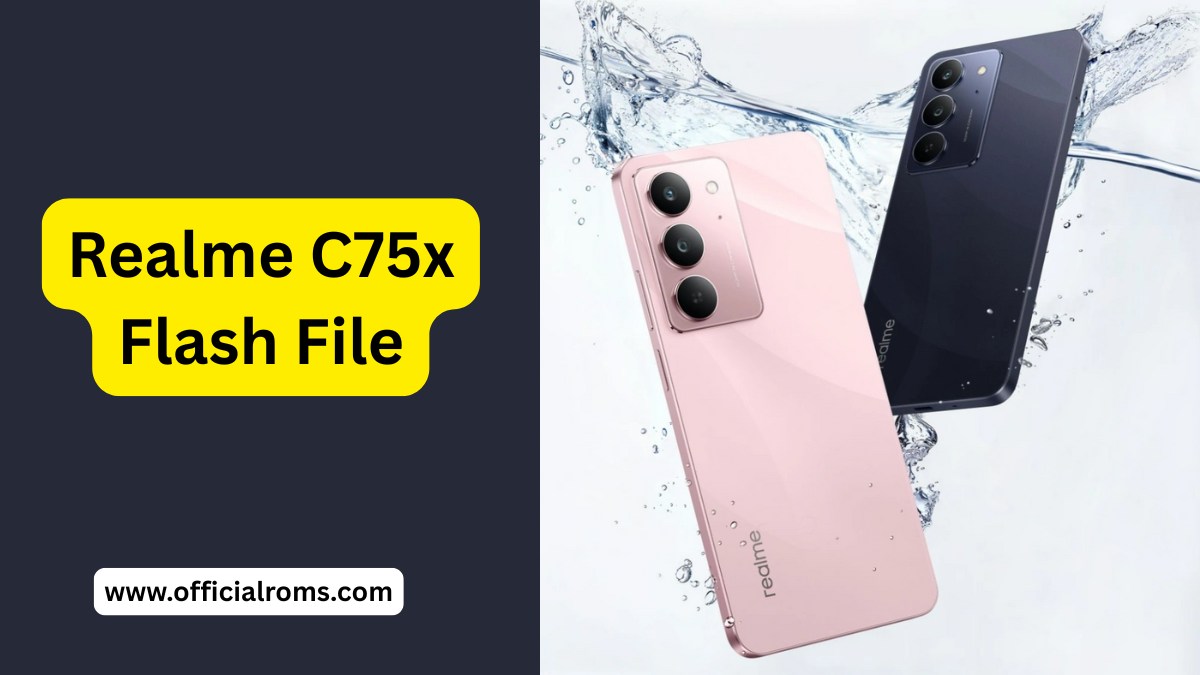
Realme C75x Flash File – Overview
| Feature | Details |
|---|---|
| Device Name | Realme C75x |
| Model Number | RMX5020 |
| ROM Type | Official Stock ROM |
| OS Version | Android 14 (ColorOS 15, may vary) |
| File Type | .zip / .ozip (usually extracted) |
| File Size | 14.10 GB |
| Required Tool | MSM Download Tool or QFIL Tool |
| Driver Required | Realme/Qualcomm USB Drivers |
| Last Update | May 2025 (Latest Official Version) |
Download Realme C75x RMX5020 Flash File
To ensure safety and reliability, only download flash files from trusted sources. Below is a verified link:
Download – Official ROM (v11.15.0.0.300)
File Name: Realme_C75X_RMX5020_MT6768_EX_11_15.0.0.180EX01_250211.zip
File Size: 14.10 GB
Date Released: May 3, 2025
Pre-Requirements Before Flashing
Make sure to prepare the following before you begin the flashing process:
✅ Essentials:
- A Windows PC or laptop
- A USB cable (preferably original)
- Battery charged above 50%
- Realme/Qualcomm USB Drivers installed
- MSM Download Tool or QFIL Tool installed
- Backup your important data – flashing erases everything
How to Flash Realme C75x RMX5020 (Step-by-Step)
Step 1: Install USB Drivers
Download and install Qualcomm or Realme USB drivers on your PC to ensure your phone is detected properly.
Step 2: Download Flash File
Extract the downloaded firmware package (you’ll see files like prog_firehose.mbn, .mbn, etc.).
Step 3: Open Flash Tool
Launch the MSM Download Tool (or QFIL if using QPST). Load the firmware path into the tool.
Step 4: Connect the Device
Power off your phone, press Volume Up + Volume Down, and connect it to your PC using USB. It should enter EDL (Emergency Download) mode.
Step 5: Start Flashing
Click “Start” in the tool. Wait for the flashing process to complete. Do not disconnect the device during this time.
Step 6: Reboot & Setup
After flashing, your phone will automatically reboot. Set it up like a new device.
Flashing Tips & Warnings
- Ensure you use the correct firmware version (specific to RMX5020).
- If your IMEI disappears or shows “Null,” you may need to restore it using a QCN backup (must comply with local laws).
- Flashing will erase all data, including photos, apps, and contacts.
- Flashing incorrectly can brick your device. Proceed only if you’re confident or under expert supervision.
FAQs About Realme C75x RMX5020 Flash File
Will flashing remove screen lock or password?
Yes, flashing usually performs a factory reset and removes pattern/password locks (except FRP lock tied to Google account).
My device is not detected by the tool. What should I do?
Make sure USB debugging is enabled (if accessible) and the right USB drivers are installed. Try different USB ports/cables.
Can I use SP Flash Tool for this device?
No. Realme C75x uses Qualcomm chipset, so use MSM Download Tool or QFIL, not SP Flash Tool (which is for MediaTek).
IMEI is missing after flash. How do I restore it?
You need to use QCN backup or IMEI repair tools (check legal permission in your region before proceeding).
Conclusion
Flashing your Realme C75x RMX5020 with the official stock ROM is a powerful solution to fix software problems, unbrick the device, or restore it to factory settings. Just ensure you follow the guide step-by-step, download from a trusted source, and take backups before starting the process.
If you face any issues during flashing, feel free to ask for help in forums or contact an experienced technician.
Disclaimer
This guide is for educational purposes only. We are not responsible for any damage to your device. Always follow proper steps and use verified tools and files.