If you’re facing issues like bootloop, lag, software bugs, or simply want to restore your Realme P3 Pro 5G (model RMX5032) to its original firmware, flashing the official stock ROM is the perfect solution. In this guide, you’ll get the Realme P3 Pro 5G RMX5032 flash file download link, flashing tools, drivers, and easy-to-follow instructions to complete the process smoothly—even if you’re a beginner.
Table of Contents
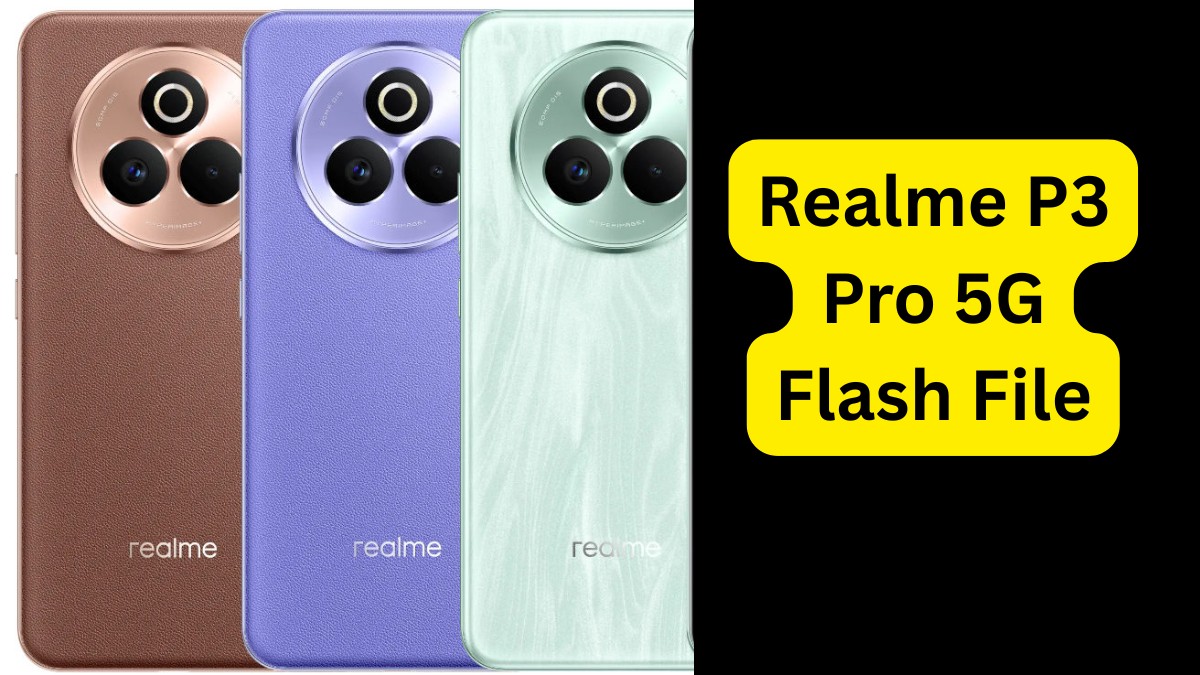
About Realme P3 Pro 5G
The Realme P3 Pro 5G (RMX5032) is a powerful mid-range 5G smartphone designed for high-speed performance and enhanced user experience. It features:
- Processor: Qualcomm Snapdragon 6 Gen 1
- Display: 6.7-inch Full HD+ AMOLED display
- RAM & Storage: Up to 8GB RAM and 256GB internal storage
- Battery: 5000mAh with 67W SUPERVOOC fast charging
- Camera: Dual Rear Cameras (64MP + 2MP), 16MP Front Camera
- Operating System: Realme UI 6.0 based on Android 14
The device is popular among tech enthusiasts and budget gamers, making it a great value-for-money 5G handset. If you encounter system problems, flashing the stock firmware is one of the best recovery options.
What is the Realme P3 Pro 5G RMX5032 Flash File?
A flash file, also known as stock firmware or ROM, is the original operating system that comes pre-installed on your Realme phone. If your phone is not functioning properly, flashing this firmware can:
- Fix boot loops or stuck on Realme logo
- Restore to factory condition
- Solve software lags and bugs
- Remove unwanted system modifications
- Unbrick a dead or non-responsive device
Download Realme P3 Pro 5G RMX5032 Flash File
Flash File Details
- Device Name: Realme P3 Pro 5G
- Model: RMX5032
- Firmware Type: Official Stock ROM
- Flash Method: QFIL / MSM Download Tool
- File Size: Around 7.62 GB
- File Extension: .zip or .ofp
- Download Now: Realme_P3_Pro_5G_RMX5032_EX_11_15.0.0.700EX01_250212_QFIL.zip
Note: Always download the version that matches your device’s region and model.
Required Tools & Drivers
To flash the firmware successfully, you’ll need the following:
✅ Tools:
- [QFIL Tool (Qualcomm Flash Image Loader)]
- [MSM Download Tool (for .ofp files)]
- [Realme Flash Tool (if needed)]
✅ Drivers:
- Qualcomm QDLoader USB Driver
- ADB & Fastboot Drivers
- Realme USB Driver (if flashing via MSM Tool)
How to Flash Realme P3 Pro 5G (RMX5032)
Warning: Flashing will erase all your data. Take a full backup before proceeding.
Step-by-Step Guide:
- Install Drivers
- Install Qualcomm QDLoader and ADB Drivers on your PC.
- Download Firmware
- Extract the downloaded RMX5032 flash file to a folder on your PC.
- Boot into EDL Mode
- Power off the device.
- Press Volume Up + Down and connect USB cable to enter Emergency Download Mode (9008).
- Launch QFIL Tool
- Open QFIL and select Flat Build.
- Load rawprogram0.xml and patch0.xml from firmware folder.
- Start Flashing
- Click “Download” in QFIL to begin flashing.
- Wait for the process to finish. Device will reboot automatically.
When Should You Flash the Stock ROM?
- After a failed software update
- When your device is stuck in a boot loop
- To remove custom ROMs/root access
- To fix bugs and crashing apps
- To improve overall performance
Final Tips
- Ensure your phone battery is at least 60% charged.
- Don’t disconnect the cable during flashing.
- Use original USB cables for a stable connection.
FAQs About Realme P3 Pro 5G RMX5032 Flash File
Q1. Is flashing safe for my Realme device?
Yes, as long as you follow instructions and use official files.
Q2. Will it void my warranty?
In some cases, flashing unofficial tools or unlocking bootloader may void warranty.
Q3. Can I flash without a PC?
No, a PC is required for flashing via QFIL or MSM Tool.
Q4. My phone is dead. Can flashing help?
Yes, if the phone can still enter EDL mode, you can revive it with the flash file.
Conclusion
Flashing the Realme P3 Pro 5G RMX5032 with the official stock firmware is a reliable way to fix software issues, unbrick your phone, or return to factory settings. With the right tools and guidance, even beginners can complete the process easily.
If you’re experiencing problems like bootloop, crashing apps, or sluggish performance, downloading and flashing the correct flash file can breathe new life into your device. Just follow the steps carefully, use verified files, and you’ll be back up and running in no time!
Disclaimer
This guide is for educational purposes only. Flashing firmware carries risks—do it at your own responsibility. We will not responsible for any damage or loss, always refer a technician or expert for performing flashing.