Transsion Holdings, the parent company behind popular mobile phone brands like Tecno, Infinix, and Itel, has gained significant market share in the smartphone industry, especially in emerging markets. To ensure that their users always have the latest software updates and firmware, Transsion offers several tools for downloading, flashing, and upgrading software on their devices. The Transsion Software Download Tool is one such essential utility for users and technicians alike, helping them manage their device’s software efficiently.
In this article, we’ll provide a detailed overview of the Transsion Software Download Tool, including its uses, how to download it, step-by-step instructions on how to use it, and frequently asked questions.
Table of Contents
What is the Transsion Software Download Tool?
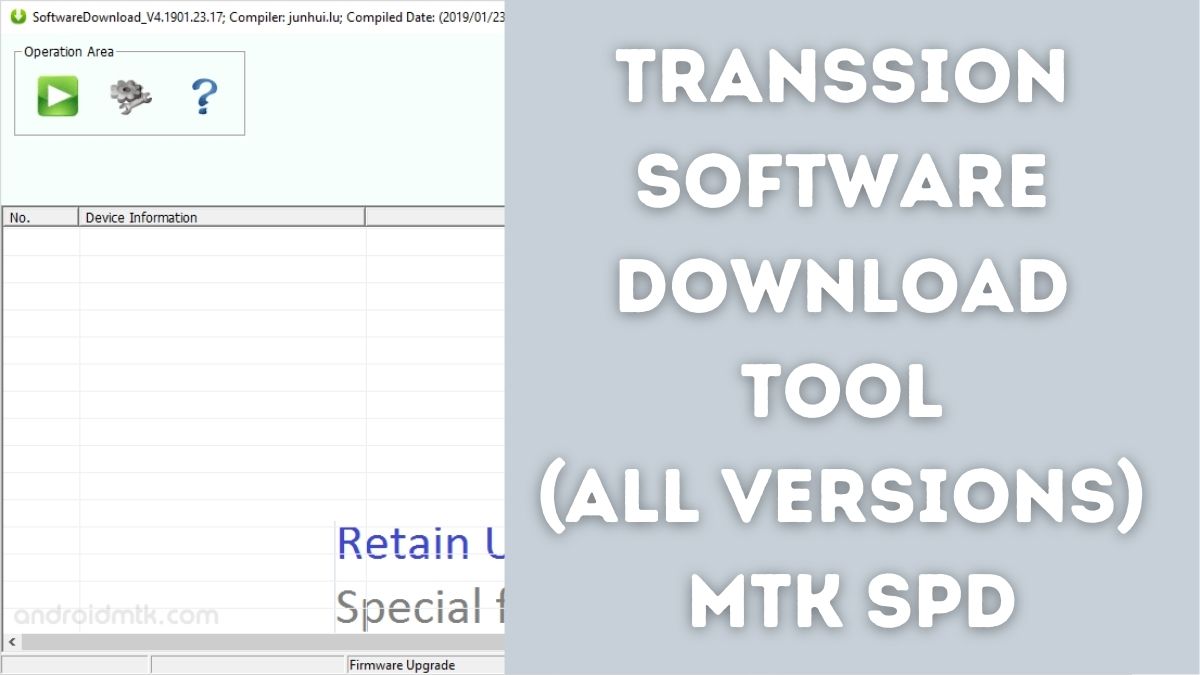
The Transsion Software Download Tool is a software utility that allows users to download and install firmware updates, flash ROMs, and restore system software on devices from Transsion’s three primary brands—Tecno, Infinix, and Itel. Whether you want to fix a bricked device, roll back to a previous firmware version, or simply install the latest update, the download tool makes it all possible with minimal hassle.
This tool is especially useful for technicians and users who prefer manual installations of software updates over the over-the-air (OTA) update process. It can also be a lifesaver for devices that have become unresponsive or have encountered software issues after a failed update or installation.
Key Features of the Transsion Software Download Tool
Before diving into the steps for downloading and using the tool, let’s take a look at the key features it offers:
- Firmware Management: Allows users to download official firmware for Tecno, Infinix, and Itel smartphones.
- Flashing ROMs: Supports the flashing of ROMs on your device, enabling you to upgrade or revert to previous versions of the software.
- Unbricking Devices: In case of bricked phones (unresponsive or stuck on the boot logo), this tool helps to reinstall or recover the original system image.
- Backup and Restore: Offers the ability to back up important data before flashing new software, ensuring that no valuable data is lost in the process.
- OTA Update Installation: You can manually install official OTA (Over-the-Air) updates, especially useful when OTA updates are not automatically available on your device.
Download Transsion Software Download Tool:
Password: officialroms
How to Download the Transsion Software Download Tool
Downloading the Transsion Software Download Tool is a straightforward process. However, to ensure you get the right version and avoid security risks, follow the steps below:
- Visit Official Websites:
- Go to the official Tecno, Infinix, or Itel support pages. These sites typically provide the software download tool along with firmware files.
- Alternatively, you can search for the tool on the Transsion official support page if you cannot find it under the individual brand’s websites.
- Check for Compatibility: Ensure that the version of the download tool you are about to download is compatible with your device model. Some tools are designed specifically for certain models or series.
- Download from Trusted Sources: Avoid downloading the software from third-party websites unless you are certain they are reliable, as some untrustworthy sources may offer altered versions of the tool.
- Install the Tool: Once the download is complete, open the setup file and follow the on-screen instructions to install the software on your computer.
How to Use the Transsion Software Download Tool
Once you have successfully downloaded and installed the Transsion Software Download Tool, follow these steps to use it:
Step 1: Prepare Your Device
Before using the software download tool, make sure to:
- Backup your data: Although the tool is designed to help with system-level flashing, it’s always a good idea to back up important files before starting the process.
- Charge your device: Ensure your device has at least 50-60% charge to avoid interruptions during the flashing process.
- Enable USB Debugging: On your device, navigate to Settings > About Phone > tap on Build Number seven times to enable Developer Options. Then, go to Settings > Developer Options and enable USB Debugging.
- Install Drivers: If necessary, download and install the proper USB drivers for your device from the Transsion website.
Step 2: Connect Your Device to Your Computer
Use a USB cable to connect your Transsion device to your computer. Wait for the connection to be recognized by the Transsion Software Download Tool.
Step 3: Download Firmware (If Needed)
If you don’t already have the firmware file, navigate to the Firmware Download section of the tool. Select your device model and download the correct firmware package.
Step 4: Flash the Firmware
- Select the firmware you want to install.
- Click on the Flash button to begin the installation process.
- Wait for the tool to detect your device and start flashing the firmware.
Step 5: Wait for the Process to Complete
The flashing process may take several minutes, depending on the size of the firmware and the speed of your connection. Do not disconnect your device during the process.
Step 6: Reboot Your Device
Once the flashing process is complete, the software will prompt you to reboot your device. Follow the on-screen instructions, and your device should now be running the new software.
Troubleshooting Common Issues with the Transsion Software Download Tool
While the Transsion Software Download Tool is a reliable utility, there are a few common issues that users may encounter during the flashing process. Here are some solutions to common problems:
- Device Not Detected: Make sure the USB drivers are properly installed and that USB Debugging is enabled. Try using a different USB port or cable.
- Flash Failures: If the flashing process fails, ensure you are using the correct firmware for your device. Flashing the wrong firmware can result in boot loops or bricking your device.
- Stuck on Boot Logo: If your device is stuck on the boot logo after flashing, try booting into Recovery Mode (by holding down the volume up + power button) and performing a factory reset.
Frequently Asked Questions (FAQ)
Can I use the Transsion Software Download Tool on any Transsion device?
Yes, the tool supports a variety of devices from Tecno, Infinix, and Itel. However, make sure to select the correct firmware based on your specific model.
Is the Transsion Software Download Tool safe to use?
Yes, if downloaded from official Transsion sources, the tool is safe to use. Always avoid third-party websites to reduce the risk of downloading malicious software.
Will flashing my device erase my data?
Flashing your device may erase all data, especially if you perform a factory reset. Always back up important files before flashing.
How do I know which firmware to download for my device?
Check your device’s model number in Settings > About Phone. Cross-reference the model number with the firmware available for download to ensure compatibility.
Conclusion
The Transsion Software Download Tool is an essential utility for users and technicians who need to download, flash, or update the firmware on Tecno, Infinix, or Itel devices. Whether you are dealing with a bricked device, need to install a new firmware version, or just want to update your phone manually, the tool offers a reliable and efficient solution.
By following the steps outlined in this article, you can safely and effectively use the tool to manage your Transsion device’s software. Always remember to download software only from trusted sources, back up your data, and carefully follow the instructions to avoid issues.