If you are having technical issues with your OnePlus Pad Go, flashing the stock firmware is often the best solution. This can help fix problems like a boot loop, unbricking the device, or restoring it to its original state. It’s important to use the correct flash file. In this easy guide, we’ll explain step-by-step how to download and install the official OnePlus Pad Go flash file.
Table of Contents
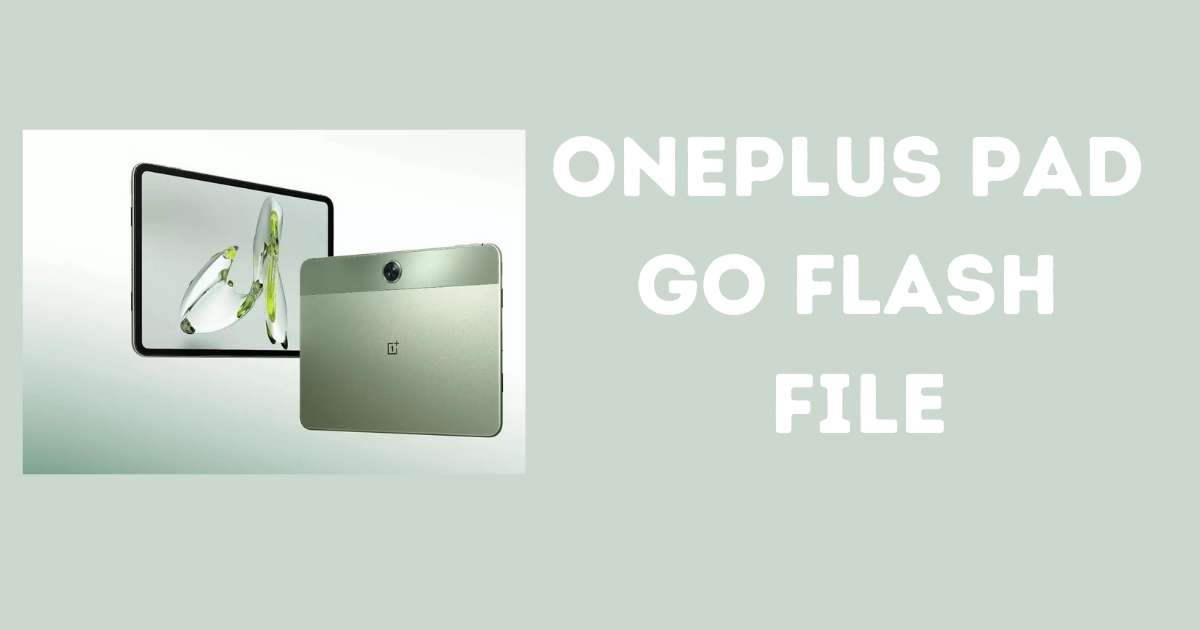
What is a Flash File?
A flash file, or stock firmware, is the software that runs the device. Flashing it can fix problems, restore factory settings, and improve performance.
Why Flash Stock Firmware?
- Fix software problems like boot loops or slow performance.
- Unbrick your device if it’s not working.
- Restore factory settings after custom modifications.
What You Need Before Flashing
- OnePlus Pad Go Flash File: Download it from a trusted source.
- Qualcomm USB Drivers: Ensure these are installed on your PC.
- Windows PC: The flashing tool works on Windows.
- USB Cable: Use the original or a high-quality one.
- Backup Data: Flashing will erase everything.
- Battery Charge: Ensure 50% or more to avoid interruption.
Download Oneplus Pad Go Flash File
Password: officialroms
Join Us Telegram Channel: Visit Here
How to Flash OnePlus Pad Go
- Download Flash File: Get the correct firmware for your device model.
- Install Qualcomm USB Drivers: Download and install drivers for your PC.
- Install QFIL: This is the tool to flash the firmware.
- Enter EDL Mode: Turn off the device, press Volume Up + Volume Down, and connect it to your PC.
- Flash the Firmware: Open QFIL, load the flash file, and click “Download” to begin flashing.
- Reboot and Set Up: After flashing, the device will reboot. Follow the setup instructions.
Troubleshooting
- Stuck in Boot Loop?: Re-flash the correct firmware.
- Flashing Failed?: Check drivers, cables, and try again with a new firmware file.
Read Also: