The MultiUnlock Tool has been widely used for unlocking and servicing Android devices, particularly for those who want to remove FRP locks, unlock bootloaders, and repair various issues on different brands of smartphones like Motorola, Huawei, Xiaomi, and Samsung. The tool’s latest version, introduces several new features and improvements that enhance its usability and compatibility with the latest Android devices. In this article, we’ll explore the tool in detail, provide instructions on how to download and use it, and answer some frequently asked questions.
Table of Contents
What is MultiUnlock Tool?
The MultiUnlock Tool is a powerful software that allows users to unlock bootloaders, remove FRP locks, and perform other maintenance tasks on Android phones. The tool is primarily designed for technicians, hobbyists, and users who want to customize their devices or troubleshoot issues that may arise during usage.
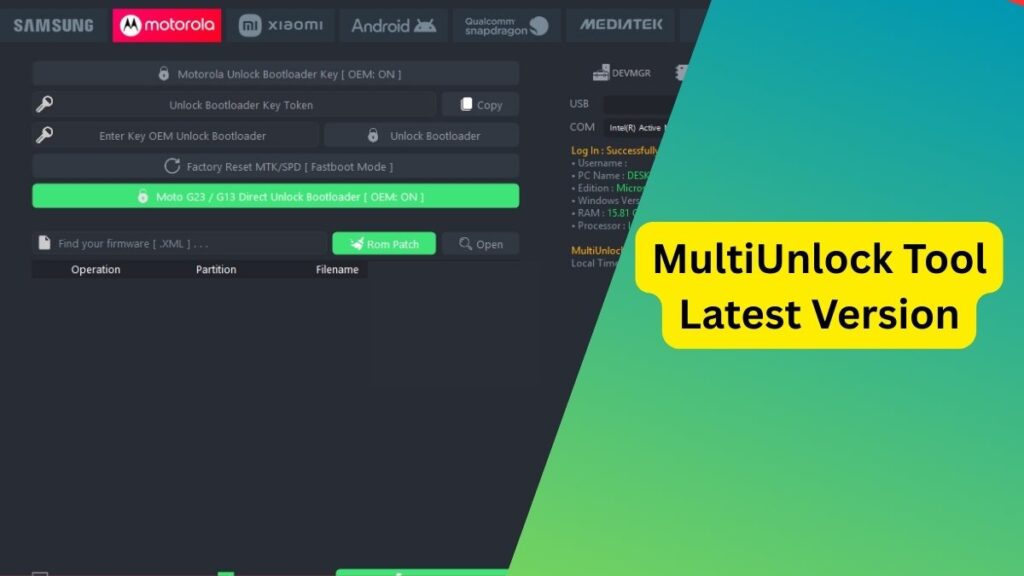
Key Features:
- Device Unlocking: Unlock bootloaders, bypass FRP locks, and unlock other security features on various Android devices.
- Support for Multiple Brands: Includes support for Motorola, Xiaomi, Samsung, and Huawei/Honor devices, among others.
- Advanced Patches: Ability to patch the firmware and ROMs, and remove user-locks and patterns from Android phones.
- User-Friendly Interface: Simplified interface to make it easy for even beginners to use the tool effectively.
Latest Version: 25.04.2025
The new update brings several new features, bug fixes, and performance improvements, including:
- Direct Unlock Support for Motorola G23/G13: Now, users can unlock Motorola devices like G23 and G13 directly in Fastboot mode.
- Huawei/Honor ROM Patching: The tool now supports additional ROM patching capabilities, particularly for Huawei and Honor devices.
- Bug Fixes: Fixed minor bugs and optimized the user experience for faster operations.
How to Download MultiUnlock Tool Latest Version?
Complete process provided below step wise follow:
Step 1: Visit the Official Website
The best way to download the MultiUnlock Tool is by visiting a trusted site like GSM Official Team or other recognized forums in the tech community. Downloading from a reputable source ensures that you’re getting a safe and working version of the tool.
Step 2: Extract the Files
Once the download is complete, extract the zip file to a folder on your PC. Ensure that you have the necessary permissions to extract files and run software on your system.
Step 3: Install the Tool
After extraction, navigate to the folder where the files are located, and run the executable file (usually named something like MultiUnlockTool.exe). Follow the on-screen instructions to install the software on your PC.
Step 4: Connect Your Device
Before using the tool, ensure that USB Debugging is enabled on your Android device, and you have connected it to your PC via a USB cable. For certain operations (like Motorola direct unlocking), the device needs to be in Fastboot Mode.
Step 5: Launch the Tool
Once the installation is complete, launch the tool by double-clicking the executable file. The interface will guide you through the process of unlocking or servicing your device.
How to Use MultiUnlock Tool?
Step 1: Enable Developer Options
Before using the MultiUnlock Tool, you must enable Developer Options on your device. To do this:
- Go to Settings.
- Scroll down and tap About Phone.
- Tap Build Number multiple times (usually seven) to unlock Developer Options.
- Go to Settings > Developer Options and enable USB Debugging.
Step 2: Connect Your Device to PC
Connect your device via USB. Make sure it is in the appropriate mode (such as Fastboot for Motorola or Download Mode for Samsung devices).
Step 3: Select the Desired Operation
Launch the MultiUnlock Tool and choose the specific task you want to perform. For example, you might choose to:
- Unlock Bootloader
- Remove FRP lock
- Flash ROM or firmware
- Patch device security
Step 4: Execute the Operation
Click on the corresponding button (usually labeled Start or Execute), and the tool will begin the process. Follow any on-screen prompts or instructions to ensure the operation completes successfully.
Step 5: Reboot the Device
After the tool completes its task, reboot the device to finalize the operation. Your device should now be unlocked or serviced based on your selection.
FAQ About MultiUnlock Tool
Is the MultiUnlock Tool Safe to Use?
Yes, the MultiUnlock Tool is safe to use if downloaded from reputable sources. Ensure you are using the official version to avoid any security risks. Always download software from trusted sites to avoid malware or other unwanted programs.
Which Devices Are Supported?
The MultiUnlock Tool supports a wide range of Android devices, including:
Motorola (G series, Moto E, etc.)
Huawei/Honor
Xiaomi
Samsung (including models with Qualcomm and Exynos processors) Additionally, it supports
several other brands and models, so you can check the official documentation for the complete list.
Do I Need to Root My Device?
No, you do not need to root your device to use the MultiUnlock Tool. However, some features (like unlocking the bootloader or bypassing FRP) may require root access or unlocking via specific modes such as Fastboot or Recovery Mode.
Can I Unlock My Device Without Losing Data?
Most operations (like unlocking the bootloader) will not affect your data. However, certain tasks, such as flashing a new ROM or factory resetting, can erase all data on the device. Always make sure to back up your important data before proceeding.
Is There a Limit to the Number of Devices I Can Unlock?
There is no specific limit to the number of devices you can unlock using the MultiUnlock Tool, but some features may be restricted for certain models or brands. Always refer to the tool’s documentation to understand any limitations.
What Should I Do If My Device Fails to Unlock?
If your device fails to unlock or experiences issues during the process:
Double-check that the device is in the correct mode (Fastboot, Download Mode, etc.).
Ensure that USB drivers are installed correctly on your PC.
Consult the MultiUnlock Tool community or forums for troubleshooting tips or firmware updates.
Where Can I Download the MultiUnlock Tool?
You can download the latest version of the MultiUnlock Tool from trusted forums like GSM Official Team or reputable Android service provider websites. Be cautious of third-party websites to avoid downloading malicious files.
Conclusion
The MultiUnlock Tool is a powerful and versatile tool for Android enthusiasts, technicians, and anyone who needs to perform unlocking, flashing, or servicing tasks on their devices. With the latest version (25.04.2025), it offers enhanced features and expanded device support, making it easier than ever to manage and troubleshoot Android devices. Always ensure that you download the tool from reputable sources and follow the instructions carefully for the best results.
Disclaimer:
This article is for educational purposes only. MultiUnlock Tool should be used responsibly and only on devices you own or have explicit permission to service. Unauthorized unlocking or modification of devices may void warranties or violate terms of service. The website and its authors are not responsible for any damage, data loss, or legal issues arising from the use of this tool. Always back up your data and proceed at your own risk.