In the dynamic world of mobile software repair and servicing, having access to the right tools can make all the difference. One such standout utility for Qualcomm-powered Android smartphones is QCTool v4.4. This tool packs a comprehensive suite of features tailored to support technicians and enthusiasts who work with Qualcomm chipsets.
Whether you’re performing a factory reset, resetting FRP, or tackling deeper-level tasks like modem or EFS reset, QCTool v4.4 provides a robust solution—all without needing complex installation or rooting.
In this article, we’ll explore the full range of features, supported devices, how to use it, and why it stands out in the software repair community.
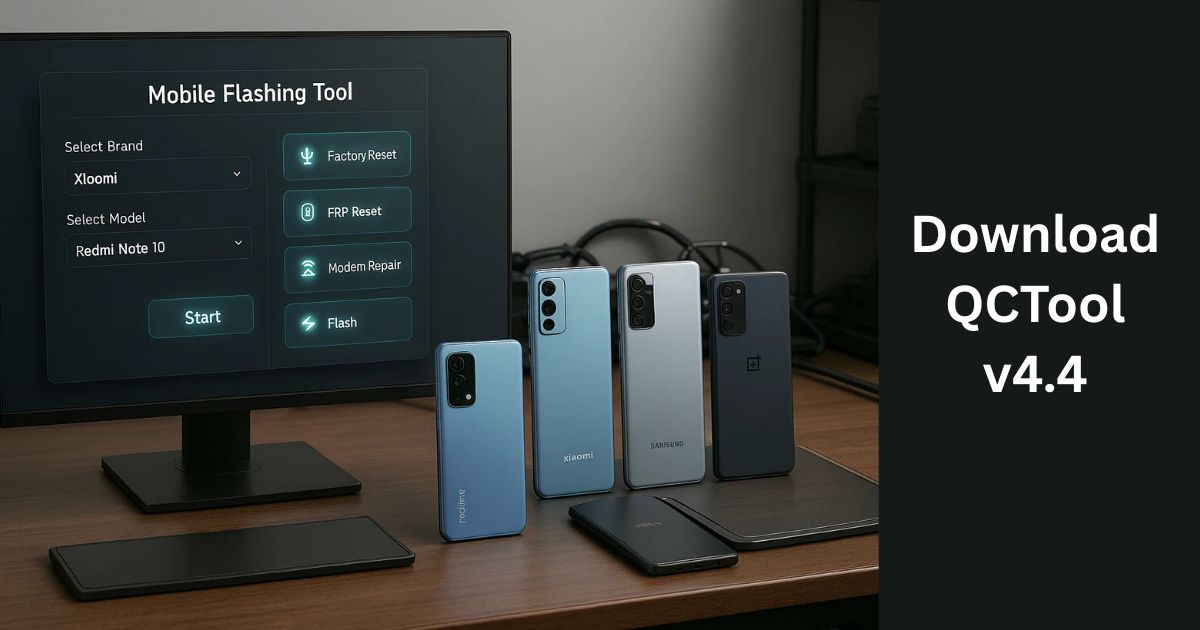
Table of Contents
✅ What is QCTool v4.4?
QCTool v4.4 is a lightweight, portable repair utility designed specifically for Qualcomm-based Android devices. The tool is distributed in a zipped format and requires no installation—just extract and run.
It’s especially useful for mobile technicians and enthusiasts who need fast, flexible, and effective solutions for device repair and maintenance.
Key Features of QCTool v4.4
QCTool v4.4 brings powerful functionality within a user-friendly interface. Here’s a breakdown of the core features:
- Safe Format: Wipes user data safely without harming the system partition.
- Factory Reset: Restores the device to its default settings, removing any user data and apps.
- FRP Reset (Old & New): Bypasses Google’s Factory Reset Protection on supported models.
- Modem Reset: Fixes network and IMEI-related issues.
- Cloud Reset (TAM & Distri): Removes specific regional cloud locks.
- EFS Reset: Clears corrupt EFS partitions to restore network functionality.
- Erase Userdata/Userarea: Clears personal files and storage partitions safely.
These features are essential for service professionals dealing with locked or malfunctioning Qualcomm phones.
Supported Device List
QCTool v4.4 supports an impressive range of smartphones across brands like Realme, Vivo, Xiaomi, Samsung, OnePlus, and Oppo. Here’s a quick overview of some of the supported models:
✅ Realme Devices
- Realme 2 (RMX1805) – Snapdragon 450
- Realme 5 Series – Snapdragon 665
- Realme 9 / 9i – Snapdragon 680
- Realme GT, X2 Pro, GT Neo 2 – Snapdragon 855+/870
- Realme C67, C15, C17 – Snapdragon 460/685
✅ Vivo Devices
- Vivo Y11 to Y100 Series – Snapdragon 425 to 695
- Vivo V5 to V30 – Snapdragon 625 to 778G
- Vivo X21 to X80 – Snapdragon 660 to 8+ Gen 1
✅ Samsung Devices
- Galaxy A02s, A05s, A20s, A70 – Snapdragon 439 to 675
- Galaxy M01, M11 – Snapdragon 450
- J4+, J6+ – Snapdragon 425
✅ Xiaomi Devices
- Mi 6X, Mi 8, Mi 9T, Mi 10T – Snapdragon 660 to 865
- Redmi Note 5 to Note 9 – Snapdragon 450 to 662
- Mi A2 Lite, MIX, Note 7/8/9 – Various chipsets
✅ OnePlus Devices
- OnePlus 7 to 12R Series – Snapdragon 855 to 8 Gen 2
- OnePlus Open, Ace2/Pro – High-end Snapdragon platforms
✅ Oppo Devices
- Oppo A3s, A5, A7, A9, A92 – Snapdragon 450 to 665
- Oppo A33, A53, A57, A78 – Snapdragon 410 to 680
- Oppo Reno Series – Snapdragon 720G to 8 Gen 2
- Oppo F17, F19, F21 Pro – Snapdragon 662 to 680
- Oppo Find X2/X5/X6 Pro – Premium Snapdragon variants
This extensive support across device families makes QCTool v4.4 extremely valuable for general phone servicing tasks.
Download QCTOOL V4.4
| Tool Name | Download Link |
|---|---|
| QCTOOL V4.4 | Click Here to Download |
| Telegram Channel for Support | Join Now |
How to Use QCTool v4.4 (Step-by-Step Guide)
Using QCTool is straightforward—even for first-timers. Follow these steps to get started:
Step 1: Download the Tool
- Download the QCTool v4.4.zip file from a trusted or official source.
Step 2: Extract the Zip File
- Use the password trial to extract the file contents.
Step 3: Launch as Administrator
- Locate the QCTool v4.4.exe file.
- Right-click and select “Run as Administrator”.
Step 4: Log in with New Account
- Enter Username and Password to open new account
Step 5: Use the Tool
- After login, you’ll be taken to the main dashboard.
- Choose any supported function—Safe Format, FRP Reset, Modem Fix, etc.
Who Can Benefit from QCTool v4.4?
- ✅ Mobile repair shops and service engineers
- ✅ Refurbishing businesses
- ✅ DIY Android modders
- ✅ Technicians dealing with bootloop, FRP, or network issues
Because it’s easy to use and requires no installation, it’s ideal for both beginners and professionals.
Important Notes
- Use the tool on supported Qualcomm devices only. It may not work properly on MediaTek or Exynos chipsets.
- Always backup data before performing wipes or resets.
- Login credentials may stop working if support ends or the version changes.
Why Choose QCTool v4.4?
- No installation required
- Fast and reliable operations
- Broad chipset support
- Perfect for fieldwork or shop usage
- Login-based access control ensures secure usage
FAQs
Q1. Is QCTool v4.4 safe to use?
Yes, it’s developed by a trusted contributor and doesn’t require installation or rooting.
Q2. Does it support MediaTek or Exynos phones?
No, QCTool v4.4 is designed only for Qualcomm chipset devices.
Q3. Is it beginner-friendly?
Absolutely. The interface is simple, and the steps are easy to follow.
Q4. Can I use it on Windows 11?
Yes, it works on Windows 7, 10, and 11 (64-bit preferred).
Final Words
If you’re looking for a no-hassle, powerful, and effective solution for handling Qualcomm-based Android issues, QCTool v4.4 is the tool to try. With support for a vast number of devices and essential repair features built-in, it’s a handy utility that every technician or enthusiast should keep in their toolkit.
Don’t wait—explore its capabilities and streamline your mobile servicing tasks with one of the most practical tools available today.
Disclaimer:
This article is for educational and informational purposes only. QCTool v4.4 is a third-party utility. Use it at your own risk. The author and publisher are not responsible for any data loss, device damage, or misuse of the software. Always ensure you have proper authorization before performing resets or modifications on any device.