The Privacy Protection Password, also known as the Anti-Theft lock, is a security feature on Itel devices that prevents unauthorized access after a factory reset. While it’s useful for theft prevention, it can also become a headache if you forget your linked Google account or if you purchase a secondhand device.
This guide walks you through a safe and effective method to remove the Privacy Protection Password from your Itel A33 (W5001P) using a custom firmware and a flashing tool.
Table of Contents
What You’ll Need to Remove Privacy Protection Password on Itel A33
Before starting the process, gather the following:
- A Windows PC or laptop
- A USB cable
- The Itel A33 firmware fix file (.pac)
- SPD Research Download Tool
- WinRAR or 7-Zip for extraction
- USB drivers for SPD (Spreadtrum) devices installed on your PC
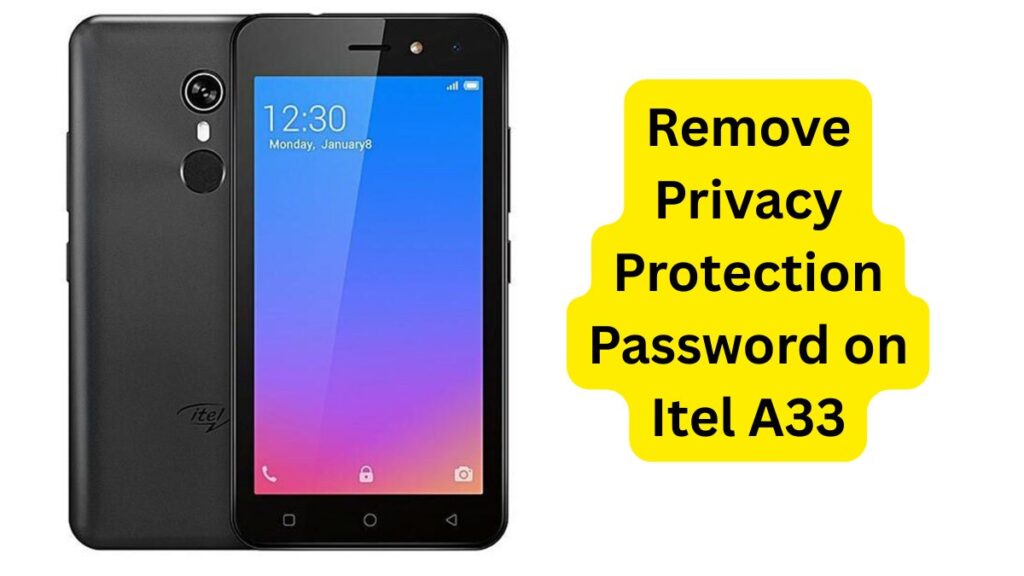
Preparation Steps to Remove Privacy Protection Password on Itel A33
Download the Firmware Fix Package
Locate and download the privacy protection removal package for the Itel A33. (Link usually provided by trusted firmware communities.)
Below are the most trusted and effective tools:
| Name | Itel A33 Privacy Protection File Remove |
| Model | W5001P |
| Name Tool | Research SPD Tool |
| PAC FILE | FREE |
| Size | 6.5MB |
Extract the ZIP or RAR File
Use software like WinRAR to extract the downloaded archive into a new folder.
Install SPD Drivers (if not already installed)
To ensure the flashing tool recognizes your device, make sure SPD drivers are installed on your PC.
Flashing Instructions
Launch the Research Download Tool
Inside the extracted firmware folder, find and open the ResearchDownload.exe tool.
Load the Fix Firmware
- Click the gear icon (Load Packet) and select the
.pacfile named something likeItel_A33_W5001P_Privacy_Protection_Fix.pac.
Adjust Flashing Settings (Optional but Recommended)
Go to the settings (gear icon with wrench), then to the “Backup” tab.
Make sure the following items are selected:
- NV_LTE
- ProdNV
- PhaseCheck
These ensure your IMEI and baseband are not erased during flashing.
Start the Flashing Process
- Click the green “Start” button in the tool.
- Power off your Itel A33 and connect it to the PC while holding the Volume Down or Volume Up button.
- The tool should detect the phone and start flashing.
Wait for Completion
- Once the process is done, you’ll see a green message indicating success.
- Disconnect the phone and power it on. It should now boot without asking for the privacy protection password.
Tips & Troubleshooting
- If your device is not recognized, try using a different USB port or cable.
- Ensure the battery is at least 50% charged before starting.
- If flashing fails midway, recheck that the correct drivers are installed and your USB connection is stable.
Disclaimer
This guide is intended for educational purposes. Proceed at your own risk. We are not responsible for any damage that may occur during the flashing process. Always back up your data if possible before starting.