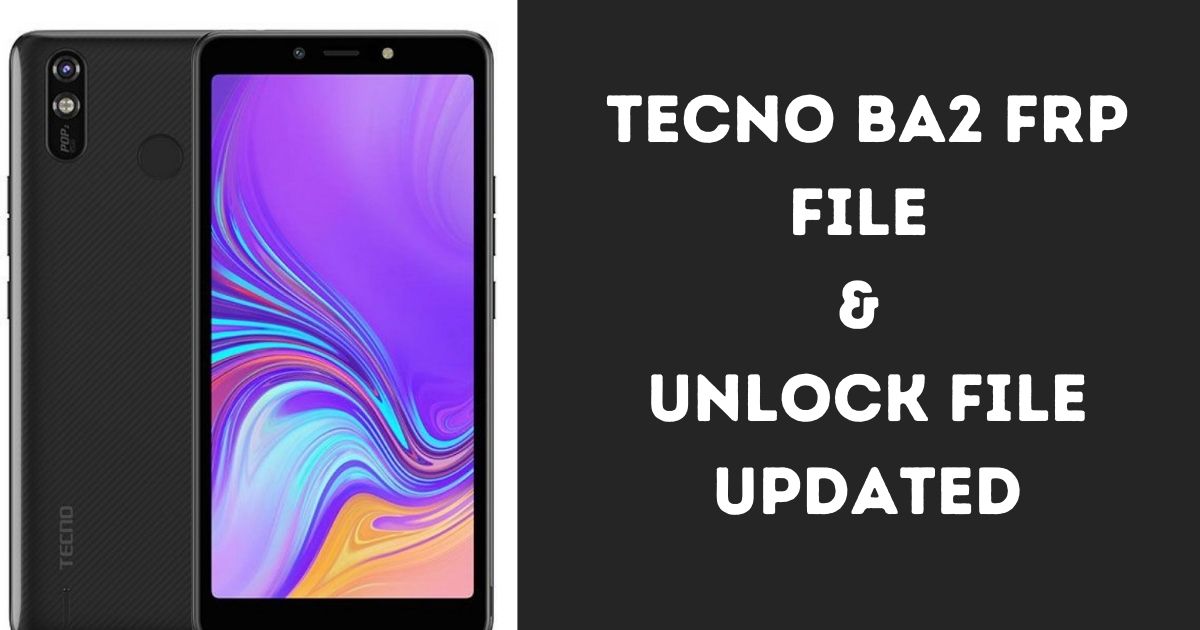
If you’re dealing with issues on your Tecno BA2, such as being locked out by a forgotten pattern, password, or FRP lock (Factory Reset Protection), this guide provides a tested solution to help you unlock your device. We will walk you through the steps to remove the FRP lock using the SP Flash Tool and other necessary files.
Table of Contents
Why Use the Tecno BA2 FRP File?
The Tecno BA2 FRP (Factory Reset Protection) and Unlock File provides an effective way to solve software-related issues, particularly those associated with locked screens or forgotten credentials. Whether it’s bypassing a Google account lock (FRP) or unlocking a pattern/password lock, this solution is user-friendly and reliable.
Download Tecno BA2 FRP File Latest Version
| Download |
|---|
| Name: BA2-H8027ABC-OGo-210527V553 FRP FILE.zip |
| Size: 450 KB |
| Password: officialroms |
| Tool: SP Flash Tool |
Key Features of Tecno BA2 FRP File:
- Unlock Pattern & Passwords: Easily remove any existing lock on the device.
- Bypass FRP Lock: Gain access even if the device is locked with a Google account.
- Tested Solution: This file has been tested using the SP Flash Tool to ensure it works smoothly without damaging your device.
How to Unlock Tecno BA2 FRP Using SP Flash Tool
Follow these steps carefully to unlock your Tecno BA2 FRP lock.
Step 1: Download and Extract Files
- Download all the necessary files from the provided link. If the link isn’t working, please leave a comment below for an alternative source.
- Install WinRAR on your PC to extract the downloaded files.
- Extract the file to your desktop for easy access.
Step 2: Prepare Your Device
- Switch OFF your phone.
- Press and hold the Volume Up + Volume Down buttons simultaneously, then connect the phone to your PC using a USB cable.
- Wait until the device enters boot mode (you will see a prompt on your PC once connected successfully).
Step 3: Load SP Flash Tool
- Open the SP Flash Tool on your PC.
- Click the Scatter-loading button and select the Android_scatter file from the extracted folder.
- Under Download-Agent, select MTK_AllInOne_DA.
- Go to Options → Connection and set the Com Port to COM:3 and the Baud Rate to 921600.
Step 4: Format the User Data
- Open Device Manager on your PC to confirm your device’s Com Port. Refer to the image below for guidance.
- In the Userdata Format tab, select Manual flash.
- Copy and Paste the following codes:
- Begin Address[HEX]:
0x9e800000 - Format Length[HEX]:
0x304580000
- Begin Address[HEX]:
Step 5: Unlock FRP
- For FRP unlock, go to the manual format flash section.
- Copy and Paste the following FRP unlock codes:
- Begin Address[HEX]:
0x22000000 - Format Length[HEX]:
0x100000
- Begin Address[HEX]:
Step 6: Final Steps
- Once everything is set up, click the Start button to begin the unlocking process.
- Wait for the process to complete. You will see a notification when the FRP lock is successfully removed.
Conclusion
Unlocking your Tecno BA2 using the provided FRP file and SP Flash Tool is a simple yet effective solution for resolving locked screen issues. Follow each step carefully to avoid any mistakes. If you run into any difficulties, feel free to reach out through the comments section below, and we’ll provide assistance.
Read Also: