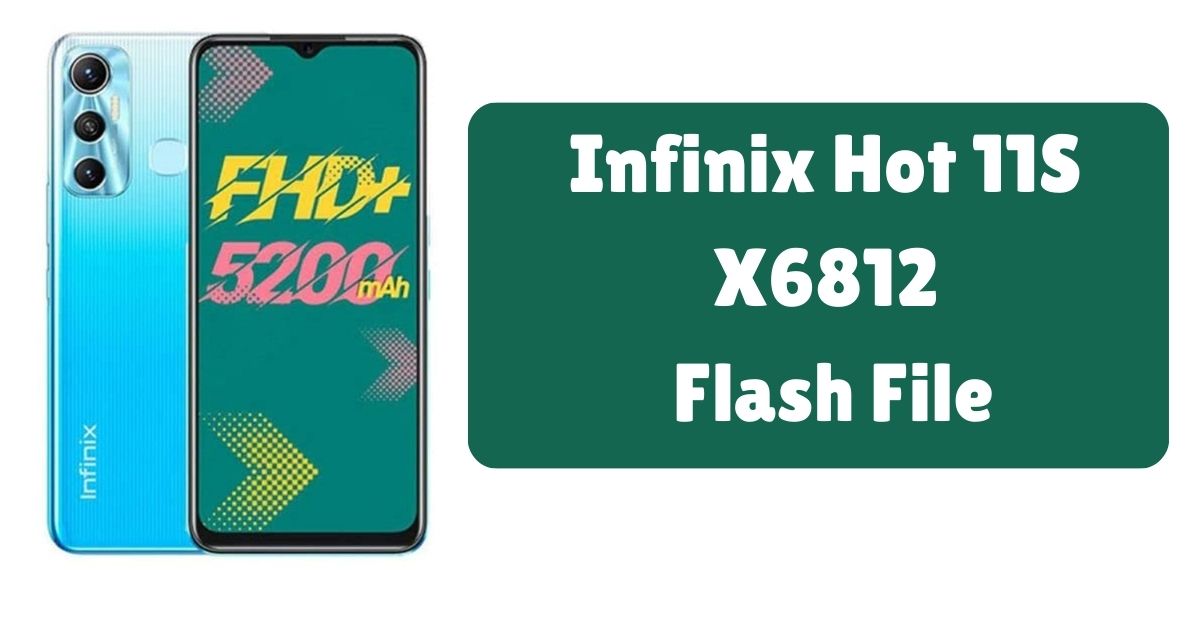
Infinix Hot 11S X6812 is a premium device, which carries some kind of issues that may require firmware updates or flashing. For example, boot loops, bricked devices, and some system malfunction require flashing the stock firmware for the solutions. Here is a comprehensive guide on how to flash the Infinix Hot 11S X6812 safely and efficiently.
Whether you are a power user or someone new to the scene, follow this guide to restore your phone to factory settings or upgrade it to the latest firmware.
Table of Contents
Why Flash Your Infinix Hot 11S X6812?
Flashing a phone’s firmware means reinstalling or updating its operating system. This can resolve various technical issues, including:
- Boot loop issues
- Stuck on logo problems
- System lag or crashes
- Software bugs
- Unresponsive devices
- Removing unwanted custom ROMs
Flashing your device with the correct flash file (firmware) ensures you restore its functionality to its original or upgraded state.
Before Flashing
Before any flashing process, do the following Required:
- A completely charged Infinix Hot 11S X6812 in case the process requires an interruption
- A Windows PC most flashing tools support Windows
- A USB cable to connect your device to the computer
- Downloading and installing necessary drivers including MediaTek drivers
- SP Flash Tool-also known as Smartphone Flash Tool- this should be present on the system to flash Infinix devices
- Infinix Hot 11S X6812 Stock Firmware-download firmware which is a correct version to your device
Important Notes
- Backup of data – Firmware flashing will delete all your files. Never forget to backup such important contacts, messages, and media.
- Ensure the correct firmware – Wrong firmware may damage the device while flashing.
How to Use Flash Infinix Hot 11S X6812
1. Install MediaTek USB Drivers
To ensure that your computer recognizes the Infinix Hot 11S X6812 during the flashing process, install MediaTek USB drivers. This allows your PC to communicate with the device.
- Download the MediaTek USB VCOM drivers from a trusted source.
- Unzip the downloaded file.
- Open the installation file and follow the prompts.
- Restart your PC after the drivers are installed.
2. Download and Install SP Flash Tool
SP Flash Tool is essential for flashing MediaTek-powered devices like the Infinix Hot 11S X6812.
- Download the SP Flash Tool from the official website.
- Extract the files into a folder on your computer.
- Open the folder and launch the flash_tool.exe file to start the program.
3. Download the Infinix Hot 11S X6812 Flash File
Get the official Infinix Hot 11S X6812 flash file from a trusted source. Make sure the firmware version is compatible with your device.
- Download the firmware.
- Unzip the downloaded file, and you will find a scatter file inside.
4. Load the Firmware on SP Flash Tool
Open SP Flash Tool and follow these steps:
- Click on the Download tab in SP Flash Tool.
- Click on the Choose button next to the scatter-loading field.
- Navigate to the folder where you extracted the firmware and select the MTxxx_Android_scatter.txt file.
This file contains all the information the SP Flash Tool needs to flash the firmware.
5. Connect Your Infinix Hot 11S X6812 to the PC
- Turn off your device completely.
- Press the Volume Up or Volume Down button to allow your PC to detect the device.
- Connect your phone to the PC via the USB cable.
6. Flash the Firmware
- Once the phone is connected, click on the Download button in SP Flash Tool.
- SP Flash Tool will begin the flashing process.
- Wait until the process completes, which may take several minutes.
- Once finished, you will see a green checkmark on the screen indicating that the flashing process was successful.
7. Disconnect and Reboot
- Disconnect the phone from the computer.
- Power on the device. The first boot may take longer than usual as the firmware initializes.
Congratulations! You have successfully flashed the firmware on your Infinix Hot 11S X6812.
Troubleshooting Common Flashing Errors
1. SP Flash Tool Not Detecting the Phone
- Ensure MediaTek drivers are correctly installed.
- Try a different USB port or cable.
- Check if the phone is properly powered off before connecting.
2. Flashing Stuck or Failed
- Use the latest version of SP Flash Tool.
- Double-check if the correct scatter file is used.
- Ensure that the firmware is compatible with your device.
3. Boot Loop After Flashing
- Perform a factory reset by booting into recovery mode.
- If the problem persists, repeat the flashing process with the correct firmware version.
Download Infinix Hot 11S X6812 Flash File (STOCK ROM)
Conclusion
Flashed a Infinix Hot 11S X6812 with ease using the steps for flashing the proper steps and easily solved the problem of boot loops, unresponsive devices, or even software bugs should you ensure that you have a reliable backup of your data and download the right firmware.