If your Poco C71 is stuck on the logo, lagging, or showing system errors, flashing it with the official Poco C71 flash file (stock ROM) can solve these problems effectively. In this article, we’ll cover how to download the Poco C71 firmware, the tools required, and a safe flashing method — even if you’re a beginner.
Table of Contents
What is the Poco C71 Flash File?
The Poco C71 flash file is the official stock firmware (also called stock ROM) released by Xiaomi. It’s used to reinstall the operating system of the phone, and it’s especially helpful when the device is not functioning properly.
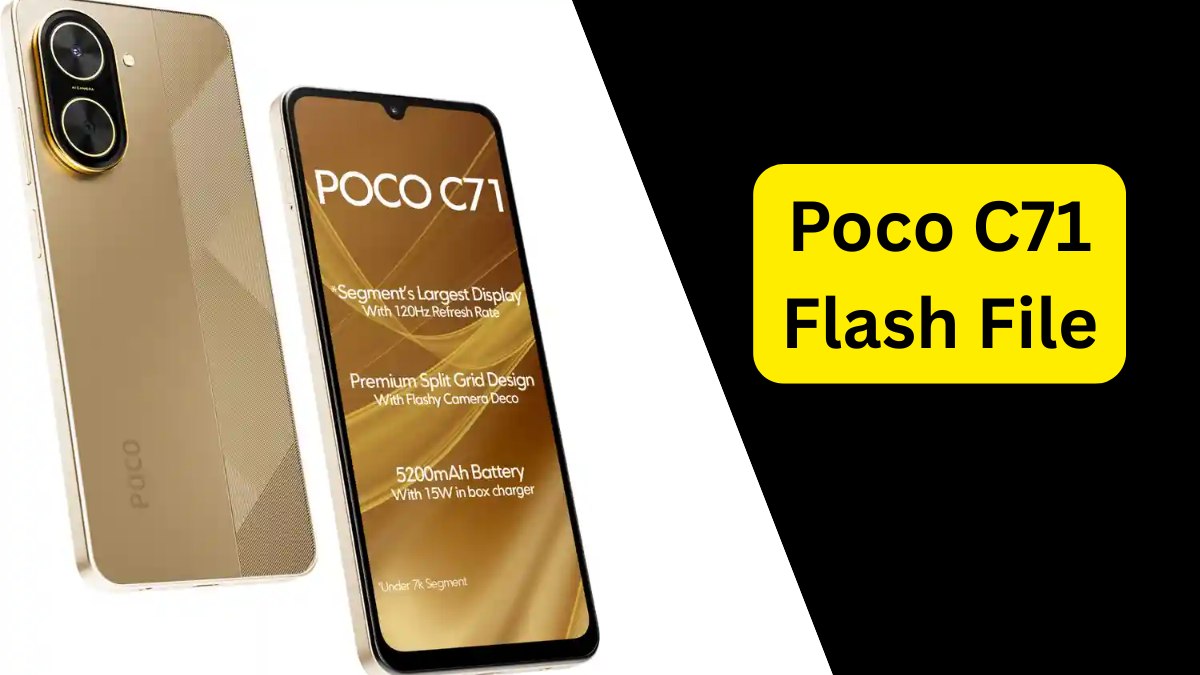
Using the correct Poco C71 stock ROM download, you can fix:
- Bootloop or stuck-on-logo issues
- Slow system performance
- Unresponsive touch or app crashes
- Malware or corrupted firmware
- Downgrade/upgrade the MIUI version safely
Poco C71 Firmware Download Links
You can download the Poco C71 firmware from trusted sources that host both Fastboot and Recovery ROMs. Always select the ROM version that matches your phone’s region.
- Indian Version: A15.0.2.0.VGWINXM
- Global Version: A15.0.3.0.VGWMIXM
- Includes: Poco C71 flash tool (Mi Flash Tool) + USB Drivers
- Global, India, Russia, and EEA ROMs
- Provides both Recovery and Fastboot files
- Helpful for performing a clean Poco C71 MIUI update
- Full repository for Poco C71 ROMs
- Searchable by codename “Serenity”
- Supports both stable and developer builds
Tools Required to Flash Poco C71
Before flashing your phone, ensure you have:
- A Windows PC or laptop
- Poco C71 Fastboot ROM (in .tgz format)
- Mi Flash Tool (official Xiaomi flashing tool)
- Qualcomm USB Drivers
- A reliable USB cable
- Fully charged phone (at least 50%)
Backup Before Flashing
Flashing will erase all your data, including contacts, apps, and files. Make sure to:
- Back up your phone data to Google Drive or PC
- Remove Mi Account if possible to avoid verification issues
- Note your Google account credentials
How to Flash Poco C71 – Step-by-Step Guide
Step 1: Boot into Fastboot Mode
- Power off your phone
- Press and hold Volume Down + Power buttons until the Fastboot screen appears
- Connect the phone to your PC using USB
Step 2: Open Mi Flash Tool
- Install and launch the Poco C71 flash tool
- Click Select and choose the extracted Fastboot ROM folder
- Click Refresh to detect your connected device
Step 3: Start Flashing
- Choose “clean all” mode (recommended)
- Click Flash
- Wait 5–10 minutes until flashing completes
Step 4: Reboot & Setup
- Your Poco C71 will reboot automatically
- Complete setup and enjoy a fresh start
Poco C71 Stuck on Logo Fix
If your Poco C71 is stuck on the Poco logo, it’s often due to corrupted firmware or a failed update. Flashing with the correct Poco C71 Fastboot ROM using Mi Flash Tool is the most effective unbrick method.
Benefits of Flashing Poco C71
- Fix all software issues instantly
- Perform a clean Poco C71 MIUI update
- Restore factory performance
- Remove viruses or bloatware
- Unbrick the device if it’s not booting
FAQ – Poco C71 Flash File
Q1. What is the Poco C71 Flash File?
Ans: It’s the stock firmware used to reinstall the operating system on your Poco C71 to fix bugs, boot loops, and other software issues.
Q2. How do I download Poco C71 firmware?
Ans: You can download it from trusted sources like FirmwareFile.com, MiROM.EzBox, or MiFirm.net. Make sure the file version matches your phone’s region.
Q3. Is it safe to flash the Poco C71?
Ans: Yes, if you use the official firmware and follow the correct steps using the Poco C71 flash tool, it’s safe.
Q4. Will flashing erase all my data?
Ans: Yes, flashing performs a full wipe. Always back up your data before starting.
Q5. Can flashing fix Poco C71 stuck on logo?
Ans: Absolutely. It’s the most reliable Poco C71 stuck on logo fix and is used to recover from bootloop or soft brick issues.
Q6. Can I downgrade or upgrade MIUI by flashing?
Ans: Yes, you can use a compatible ROM version to upgrade or downgrade your MIUI version.
Conclusion
Using the official Poco C71 flash file is a reliable way to fix software problems, unbrick your device, or perform a clean MIUI update. Just follow the flashing steps carefully, and always back up your data to avoid data loss.
This guide provides everything you need — from firmware download links to tools and flashing steps. If you’re still unsure, consider visiting a professional technician to avoid risks.
Disclaimer:
Flashing your phone is a technical process. Do it at your own risk. We are not responsible for any damage or data loss caused by improper flashing.

