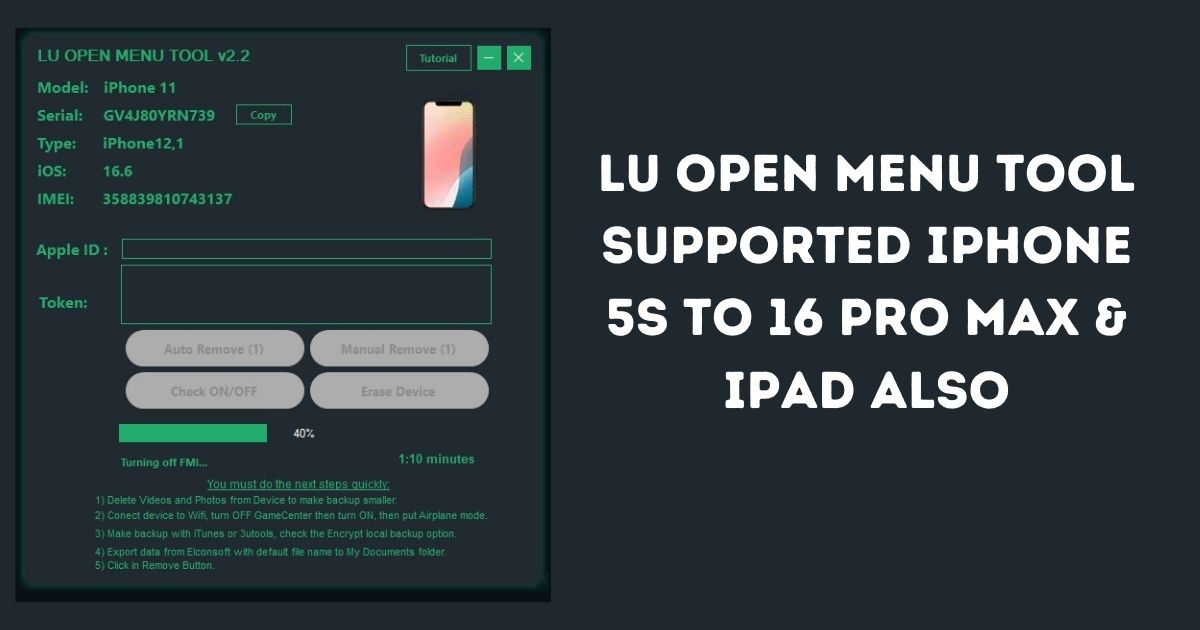
If you’ve been struggling to disable Find My iPhone (FMI) or manage your iCloud settings, the LU Open Menu Tool V2.7 could be your solution. This powerful tool allows iPhone users to easily turn off FMI without the need for complex steps, jailbreaking, or third-party apps. Whether you have an iPhone 5s or the latest iPhone 16 Pro Max, LU Open Menu Tool V2.7 makes it easier and ensures that your device is safe while disabling Find My iPhone.
In this in-depth guide, we will discuss what LU Open Menu Tool V2.7 is, how to use it, and the benefits it offers. Let’s get started!
Table of Contents
What is LU Open Menu Tool ?
LU Open Menu Tool V2.7 is a utility software for Windows that manages and disables Find My iPhone (FMI) on iOS devices. It is very useful for any user who wants to turn FMI off without needing additional software, such as Elcomsoft, or going through the complicated process of jailbreaking their iPhones. The tool supports all kinds of iPhone models, from old ones like the iPhone 5s to the newest iPhone 16 Pro Max, and supports iOS 18.5 and later.
Key Features of LU Open Menu Tool
LU Open Menu Tool V2.7 brings several powerful features to the table, making it a must-have for iPhone users who want an easy way to manage their FMI settings. Here are some key features:
- LU Open Menu Tool V2.7 does not require the presence of Elcomsoft or third-party software. That’s how it works on its own, making things a little easier and safer.
- Click to Deactivate FMI-This device will deactivate Find My iPhone with just one click; you don’t need complicated steps for that.
- Manage your Game Center-Game Center can be easily managed through enabling or disabling it, regardless of the password.
- Boosted Backup Speed: The application optimizes the backup speed to be completed within two minutes. This will save your valuable time.
- Compatibility with iOS: Completely supports iOS 18.5 and further, compatible with almost all types of iPhones from iPhone 5s to the new generation iPhone 16 Pro Max.
- Erase Device without Jailbreaking: This tool allows you to delete your device safely without requiring any jailbreak.
- Storm Wall Firewall: Added extra safety features in the process, such as protecting your device data with the addition of the Storm Wall firewall.
Why Choose LU Open Menu Tool
If you’ve been facing issues with Find My iPhone (FMI) or iCloud activation, LU Open Menu Tool V2.7 offers a hassle-free solution. Here’s why it stands out:
- Highly Intuitive: The tool, even for a non technical person, is easy and intuitive to use. Be it a beginner or any sophisticated user, this tool fulfills the requirements of a number of users.
- No Set-ups: Unlike other tools available that require complex set ups or external software, with just one click, LU Open Menu Tool V2.7 turns off FMI.
- Compatibleness: Whether you have an older iPhone 5s or the latest iPhone 16 Pro Max, LU Open Menu Tool V2.7 supports all iPhones running iOS 18.5 or later.
- Safety and Security: The tool ensures that your data is securely backed up and protected throughout the entire process, minimizing any potential risks to your device.
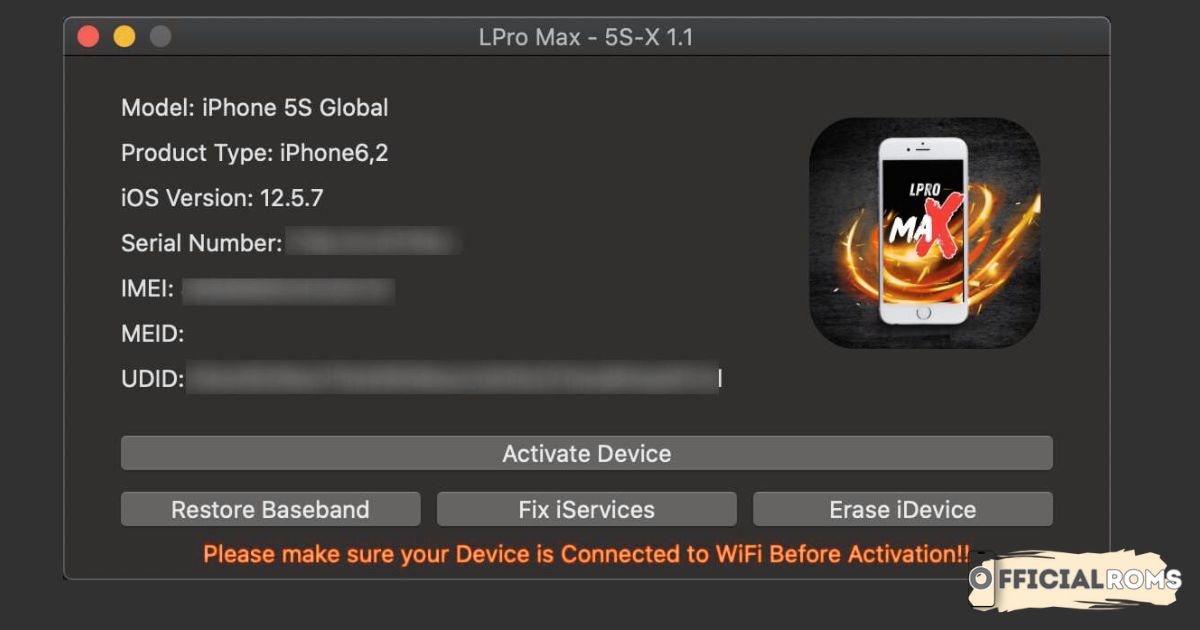
Read also: LPro MAX V1.1: iCloud Bypass Tool For Iphone 5S TO X
How to Use LU Open Menu Tool to Disable FMI
If you want to disable Find My iPhone using LU Open Menu Tool V2.7, follow these simple steps:
1. Prepare Your iPhone
Before you begin, make sure you prepare your iPhone to ensure a smooth process:
- Remove Photos and Videos: Remove any unwanted photos and videos to make the size of the backup smaller.
- Connect to Wi-Fi: The iPhone should be connected to a stable Wi-Fi connection for seamless backup.
- Airplane Mode: Airplane mode should be turned on in order to maintain a stable connection in the process.
- Game Center: Game Center should be turned off, and then activated after the initial steps.
2. Create an Encrypted Backup
Use iTunes or 3uTools to create a backup of your device. Ensure that you select the “Encrypt local backup” option to protect your data.
3. Export Data Using Elcomsoft (If Applicable)
If you’ve set a backup password, you may need to use Elcomsoft to export necessary data. Make sure to save the exported files in your Documents folder.
4. Disable FMI with One Click
Once everything is set up:
- Open LU Open Menu Tool V2.7 on your computer.
- Connect your iPhone to the computer.
- Choose the Remove FMI option.
- The tool will automatically disable Find My iPhone on your device.
If your device has a backup password, follow the additional instructions to remove it manually using the XML file from Elcomsoft.
New Features in LU Open Menu Tool
LU Open Menu Tool V2.7 introduces several exciting new features that enhance its usability:
- Improved Backup Speed: The backup process is now faster, completing in under two minutes.
- No Elcomsoft Required: The new version eliminates the need for third-party software, streamlining the process.
- Support for Latest iOS Versions: Full compatibility with iOS 18.5 and later ensures that the tool works with the latest iPhone models.
- Enhanced Security Features: With the addition of Storm Wall firewall protection, your data is kept secure throughout the entire process.
Benefits of Using LU Open Menu Tool
LU Open Menu Tool V2.7 offers several benefits, making it a top choice for iPhone users:
- Easy to Use: One-click solution; no technical knowledge is required.
- Fast and Efficient: Optimized performance of the tool ensures quick deactivation of FMI and backup.
- Safe and Secure: Encryption options are available, along with added security features like the Storm Wall firewall. Your data is in good hands.
- Free to Use: Unlike some tools that charge for premium features, LU Open Menu Tool V2.7 is free.
- It will work across different iPhone models whether you own an older version of the iPhone 5s or a new version of iPhone 16 Pro Max.
Download LU Open Menu Tool V2.7
- File Name: LU Open Menu Tool V2.7
- File Size: 83.46 MB
- Developer: LU Team
- Join: Telegram
- Password: 123
- SERIAL REGISTOR Visit Here: server.officialroms.com
If you want to do manually extract the Token Download Elcom Soft iphone Braker
Manually Token FMI OFF LU Open menu Tool Tutorial Video
Read also: VG Open Menu Tool V3.0: Free iCloud Unlock Solution (2025)
FAQs About LU Open Menu Tool
Is LU Open Menu Tool V2.7 safe to use?
Yes, LU Open Menu Tool V2.7 is completely safe as long as it is downloaded from the official source. The tool doesn’t require jailbreaking, and the process is simple and secure.
Can I use LU Open Menu Tool V2.7 to bypass iCloud Activation Lock?
Yes, LU Open Menu Tool V2.7 is capable of removing Find My iPhone and bypassing the iCloud activation lock on supported devices.
What should I do if I encounter issues during the process?
If you experience any issues, check your device connection and ensure all steps have been followed correctly. If you have a backup password, make sure to manually follow the Elcomsoft instructions.
Conclusion
LU Open Menu Tool V2.7 is a game-changing tool for iPhone users looking to disable Find My iPhone (FMI) and manage iCloud settings without the hassle of third-party software or jailbreaking. Whether you want to bypass iCloud Activation Lock or simply turn off FMI for security reasons, LU Open Menu Tool V2.7 offers a fast, secure, and easy solution. Download it today to take control of your iPhone’s settings and enjoy a simpler, smoother user experience!
Read also: i-Activator Open Menu Tool – Bypass iCloud & Disable FMI on iPhone, iPad, and MacBook