If you own a Jio Bharat V2 Karbonn KW101 and are experiencing software-related issues like “Hang on Logo,” “Restart from Logo,” or “Pattern Lock,” don’t worry—help is at hand. This comprehensive guide will walk you through resolving these problems using the Jio Bharat V2 Karbonn KW101 Flash File.
Table of Contents
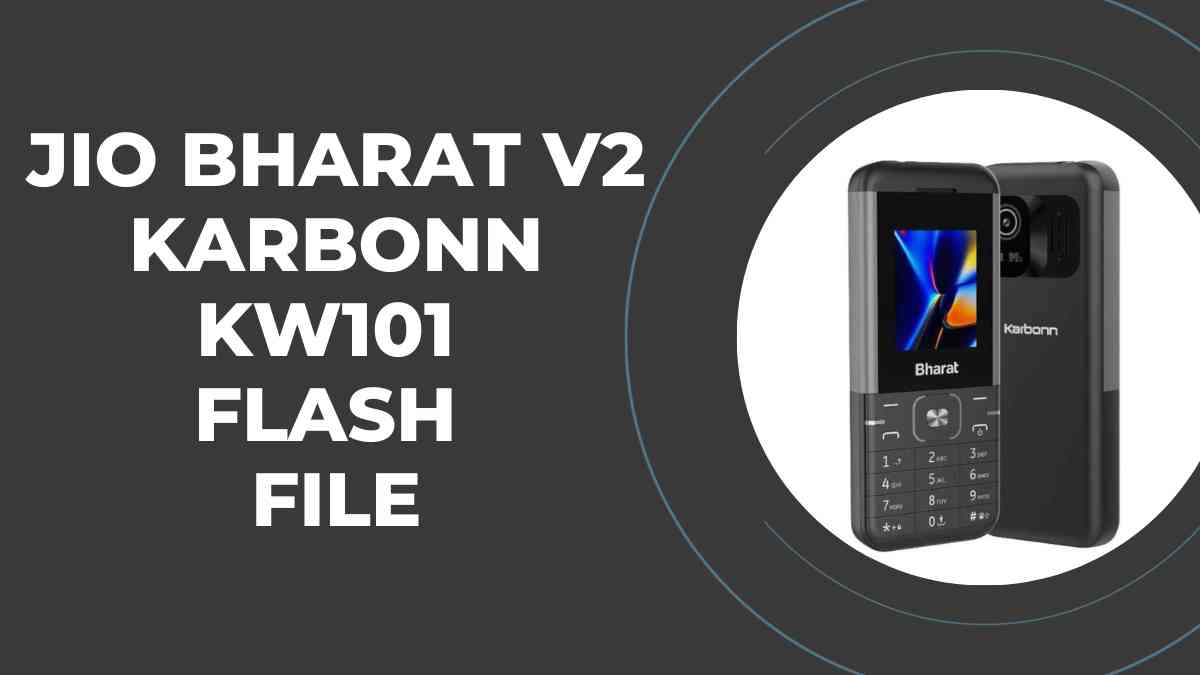
Download the Jio Bharat V2 Karbonn KW101 Flash File
Here are the details for downloading the flash file:
- File Name: Karbonn_KW101_000_02_20_230623
- File Size: 29 MB
- Password: officialroms
Also Read
Common Issues Resolved with Flashing
Flashing your device can address a variety of software issues, including:
- Hang on Logo: Device stuck at the startup logo.
- Restart from Logo: Continuous reboot loop.
- Pattern Lock/Password Reset: Forgotten security patterns or passwords.
- Hanging Problems: General sluggishness or freezing issues.
By flashing your device, you can restore its optimal performance and eliminate these frustrating problems.
Prerequisites for Flashing
Before you start, ensure you have the following:
- A Windows PC or Laptop.
- A USB Cable compatible with your Jio Bharat V2 Karbonn device.
- The required USB Drivers installed on your computer.
- The downloaded Flash Tool and Flash File.
Also Read
Guide to Flashing Your Jio Bharat V2 Karbonn KW101
Step 1: Install USB Drivers
- Download the compatible USB drivers for your device.
- Install the drivers on your computer to ensure seamless communication between the device and your PC.
Step 2: Open the Flash Tool
- Download and extract the Flash Tool from the provided link.
- Launch the Flash Tool application on your PC.
Step 3: Load the Flash File
- In the Flash Tool, locate the flash file (
Karbonn_KW101_000_02_20_230623) you downloaded earlier. - Select and load the file into the tool.
Step 4: Connect Your Device
- Power off your Jio Bharat V2 Karbonn device.
- Connect it to your PC using the USB cable.
- Click on the “Start” button in the Flash Tool to initiate the flashing process.
Step 5: Wait for Completion
- The flashing process will take a few minutes.
- Once completed, your device will automatically reboot.
Step 6: Reassemble and Power On
- Disconnect your device from the PC.
- Reassemble the battery if removed.
- Power on the device to check if the issue has been resolved.
Benefits of Flashing
- Resolves all software-related problems.
- Restores your device to its factory settings.
- Improves performance and responsiveness.
Important Notes
- Backup Your Data: Flashing will erase all the data on your device. Ensure to back up important files before proceeding.
- Use the Correct Flash File: Using an incorrect flash file may brick your device.
- Follow Instructions Carefully: Incorrect steps can lead to complications. Proceed only if you are confident.
Also Read