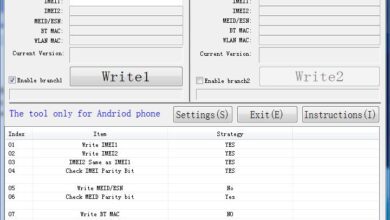
When dealing with Mediatek (MTK) chipset-powered Android devices, issues related to IMEI, MAC address, Bluetooth address (BT), Serial Number (SN), and WiFi address can often arise. These identifiers are essential for the proper functioning of the device, and when they malfunction or become corrupted, they can affect the performance and network connectivity of the device. The After Sales Tool is an essential software used to repair, restore, or write these identifiers.
This comprehensive guide will explore the After Sales Tool, its features, how to download it, and step-by-step instructions on how to use it for repairing and writing device identifiers on MTK-powered devices.
Table of Contents
What is the After Sales Tool?
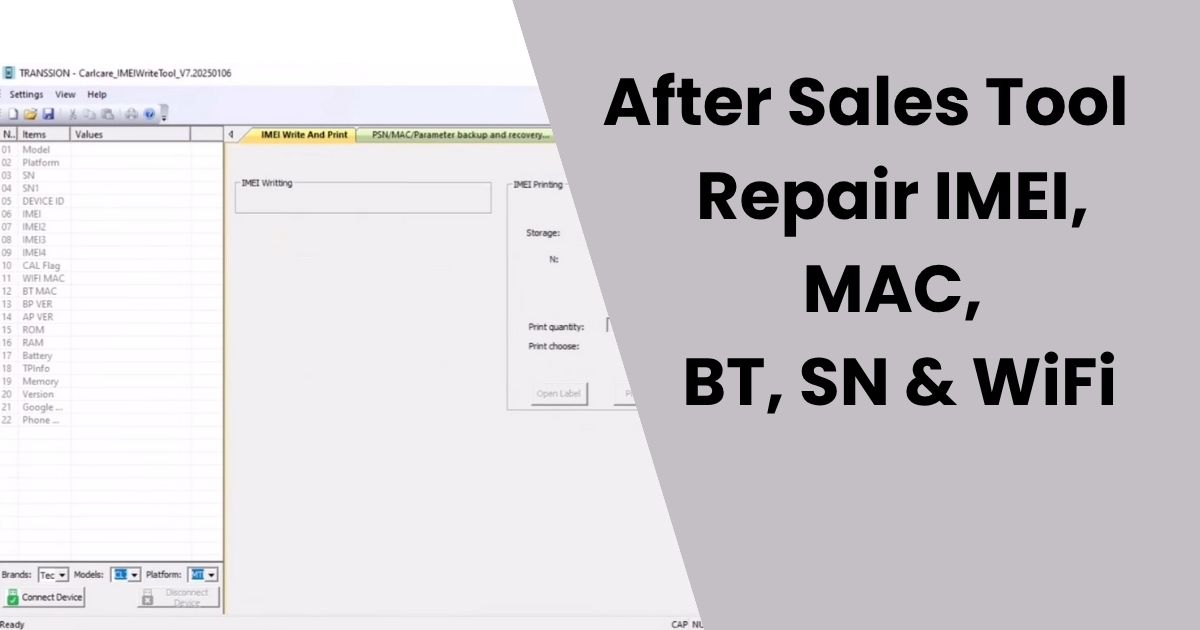
The After Sales Tool is a specialized software designed to repair and write critical device identifiers such as IMEI, MAC address, Bluetooth address, SN, and WiFi address on Android smartphones powered by MTK chipsets. This tool is primarily used by mobile manufacturers and repair professionals to ensure that all the unique identifiers on a device are correctly set during production and after repairs.
If you’re facing issues with these identifiers on your device, the After Sales Tool provides an easy way to restore or rewrite them without having to visit an official service center.
Why Use the After Sales Tool?
1. Restore IMEI, MAC, BT, SN, and WiFi Address
When an IMEI or MAC address is corrupted, your device may lose connectivity to networks and become inoperable. The After Sales Tool can be used to restore or rewrite these identifiers, ensuring that your device is fully functional.
2. Fix Network Connectivity Issues
For users experiencing network-related issues such as not being able to connect to WiFi or Bluetooth, the After Sales Tool allows you to fix the WiFi address and Bluetooth address, which are crucial for establishing connections.
3. Avoid Warranty Voiding at Service Centers
Using the After Sales Tool offers a cost-effective and time-saving alternative to going through official service centers, especially for out-of-warranty devices. However, note that using the tool can void your official warranty if used improperly.
4. Supports a Wide Range of Devices
The After Sales Tool works with a wide variety of Android smartphones powered by Mediatek (MTK) chipsets. This includes popular brands such as Tecno, Infinix, Itel, and others, making it an indispensable tool for repair shops handling a variety of devices.
How to Download After Sales Tool (All Versions)
To get started with the After Sales Tool, you’ll first need to download the software. Below are the download links for different versions of the tool, ensuring compatibility with various devices and requirements.
Password: masoodmobilesoftware
- AftersalesTool V7.2025.01.07 (MegaServer) – File Size: 118 MB (New)
- Download After Sales Tool V1.5.7 (MediaFire) – File Size: 66.28 MB
- Download After Sales Tool V1.5.1 (AFH) – File Size: 92.5 MB
- Download After Sales Tool V1.4.0 (Google Drive) – File Size: 145 MB
How to Choose the Correct Version
- Version V1.5.7 is the latest and most recommended version, offering improvements and bug fixes.
- Older versions like V1.4.0 may still be useful for legacy devices or specific requirements.
Make sure to choose the version that is compatible with your device and needs.
Read Also: Tecno Flash Tool All Latest Version Free Download
How to Use the After Sales Tool to Fix IMEI, MAC, BT, SN, and WiFi Addresses
Here’s a simple step-by-step guide on how to use the After Sales Tool to repair or write device identifiers:
Step 1: Install MTK USB Drivers
If you don’t have the MTK USB drivers installed on your computer, you’ll need to download and install them. These drivers are essential for the After Sales Tool to detect and communicate with your device.
Step 2: Extract the After Sales Tool Files
After downloading the tool, extract the ZIP file into a folder on your computer. Renaming the folder makes it easier to locate in the future.
Step 3: Open the After Sales Tool
Navigate to the extracted folder and double-click on AfterSalesFull.exe to launch the application. You’ll see several options for repairing and writing identifiers.
Step 4: Connect Your Device
Connect your MTK-powered Android device to the computer using a USB cable. Ensure that the device is in bootloader or fastboot mode for the tool to detect it properly.
Step 5: Select the Target Device
In the After Sales Tool interface, select the target type for your device. This is typically based on the model or chipset of your smartphone.
Step 6: Choose Identifiers to Repair
Now, select the identifiers you wish to repair or write, such as IMEI, MAC address, Bluetooth address, SN, or WiFi address. Input the correct information for each field.
Step 7: Start the Repair Process
Click the Start button to initiate the process. Wait for the tool to finish rewriting or repairing the identifiers. Once completed, the software will display a success message.
Frequently Asked Questions (FAQs)
Is the After Sales Tool Safe to Use?
Yes, the After Sales Tool is safe for use if you follow the instructions properly. However, improper usage may cause issues with your device and can void the warranty.
Does Using the After Sales Tool Void My Warranty?
Yes, using third-party tools like the After Sales Tool can void your device’s warranty. It is recommended to use the tool only if your device is out of warranty or if you’re willing to forgo the warranty for repairs.
Do I Need to Root My Phone to Use the After Sales Tool?
No, you do not need to root your phone to use the After Sales Tool. The tool communicates with your device via USB drivers and does not require root access.
Which Devices Are Compatible with the After Sales Tool?
The After Sales Tool supports a wide range of MTK-powered Android devices, including those from Infinix, Tecno, Itel, and other brands with Mediatek chipsets.
Can I Restore My IMEI Using This Tool?
Yes, the After Sales Tool allows you to restore or rewrite the IMEI number of your device if it has been erased or corrupted.
Conclusion
The After Sales Tool is an indispensable utility for anyone dealing with MTK-powered Android devices. Whether you’re looking to restore IMEI, MAC address, Bluetooth address, SN, or WiFi address, this tool offers a simple yet powerful solution. Remember to follow the instructions carefully, and always download the latest version of the tool to ensure optimal performance.
By following this guide and using the After Sales Tool, you can easily restore your device to its original functionality without having to visit a service center.